
Viewer
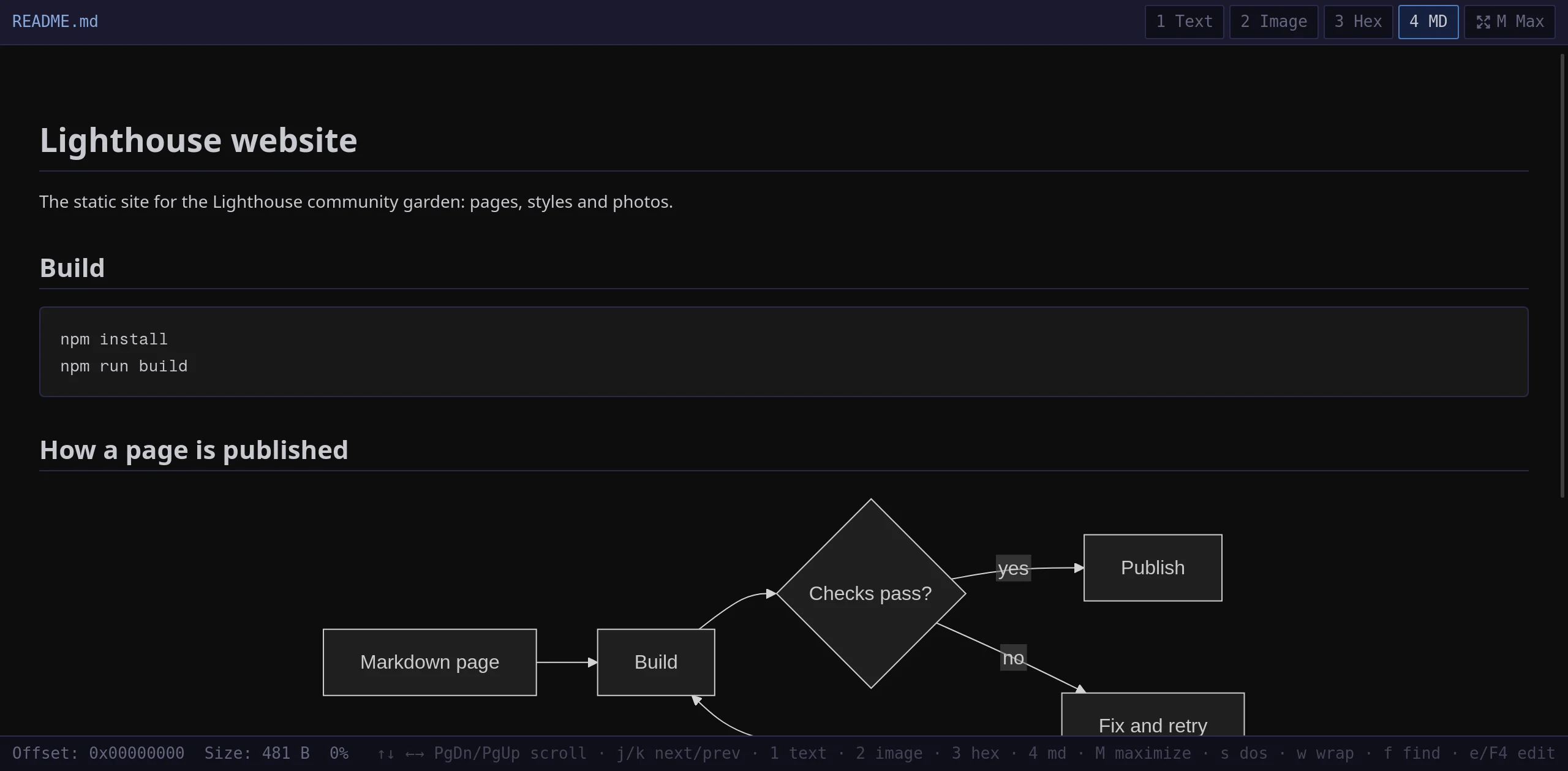
F3 (macOS: 3) opens the cursor file in a separate viewer window. It picks a renderer from the file type, and you can switch to another.
What it shows
Section titled “What it shows”| File | Shown as |
|---|---|
| Text and code | Text, with optional word wrap and DOS (CP437) decoding |
Markdown (.md, .markdown, .mdown) |
Rendered document, including Mermaid diagrams; or plain text |
Images (png, jpg, gif, webp, svg, bmp, ico, avif) |
Image you can zoom and pan |
| HEIC / HEIF | Image on macOS; elsewhere, see Settings below |
Video (mp4, webm, ogv, mkv, mov) and MP3 audio |
Player |
| Pages | |
| Anything else that isn’t text | Hex |
Very large files open quickly too: text is loaded in pieces as you scroll.
Viewer keys
Section titled “Viewer keys”These keys work inside the viewer window. Letters follow the key’s position, so they also work with non-Latin layouts.
| Key | Action |
|---|---|
| 1 | Text |
| 2 | Image or media |
| 3 | Hex |
| 4 | Rendered Markdown (Markdown files) |
| W | Word wrap on or off (text) |
| S | DOS / CP437 decoding on or off (text) |
| F | Find. Enter / Shift+Enter go to the next / previous match |
| J / K | Next / previous file in the folder |
| E or F4 | Edit the file (local files) |
| M | Maximize or restore the window |
| Space | Play or pause video and audio |
| Left / Right | Scroll sideways; in video and audio, seek 5 seconds |
| Ctrl+A (macOS: Cmd+A) | Select all text (smaller files) |
| Escape | Close find, then close the viewer |
Arrow keys, PageUp, PageDown, Home and End scroll as usual, including in PDFs.
When the viewer closes, focus returns to the panel you opened it from.
Mermaid diagrams
Section titled “Mermaid diagrams”In rendered Markdown, hover a diagram for its toolbar: zoom out, zoom in, fit and expand. Ctrl/Cmd+wheel zooms a diagram in place.
Expand shows the diagram over the whole viewer. There, + and - zoom, 0 fits it to the window, the arrow keys and dragging pan, and Escape returns to the document.
Settings
Section titled “Settings”In Settings → General (Ctrl+, (macOS: Cmd+,)):
- Preview HEIC/HEIF images with HEIC2ANY shows HEIC photos on Linux and Windows.
- Ludicrous mode (load very large images in the viewer) opens images that are normally too big to load.
Without a separate window
Section titled “Without a separate window”To preview files right next to the listing as you move the cursor, use Quick preview instead.