Command palette & shortcuts
Command palette
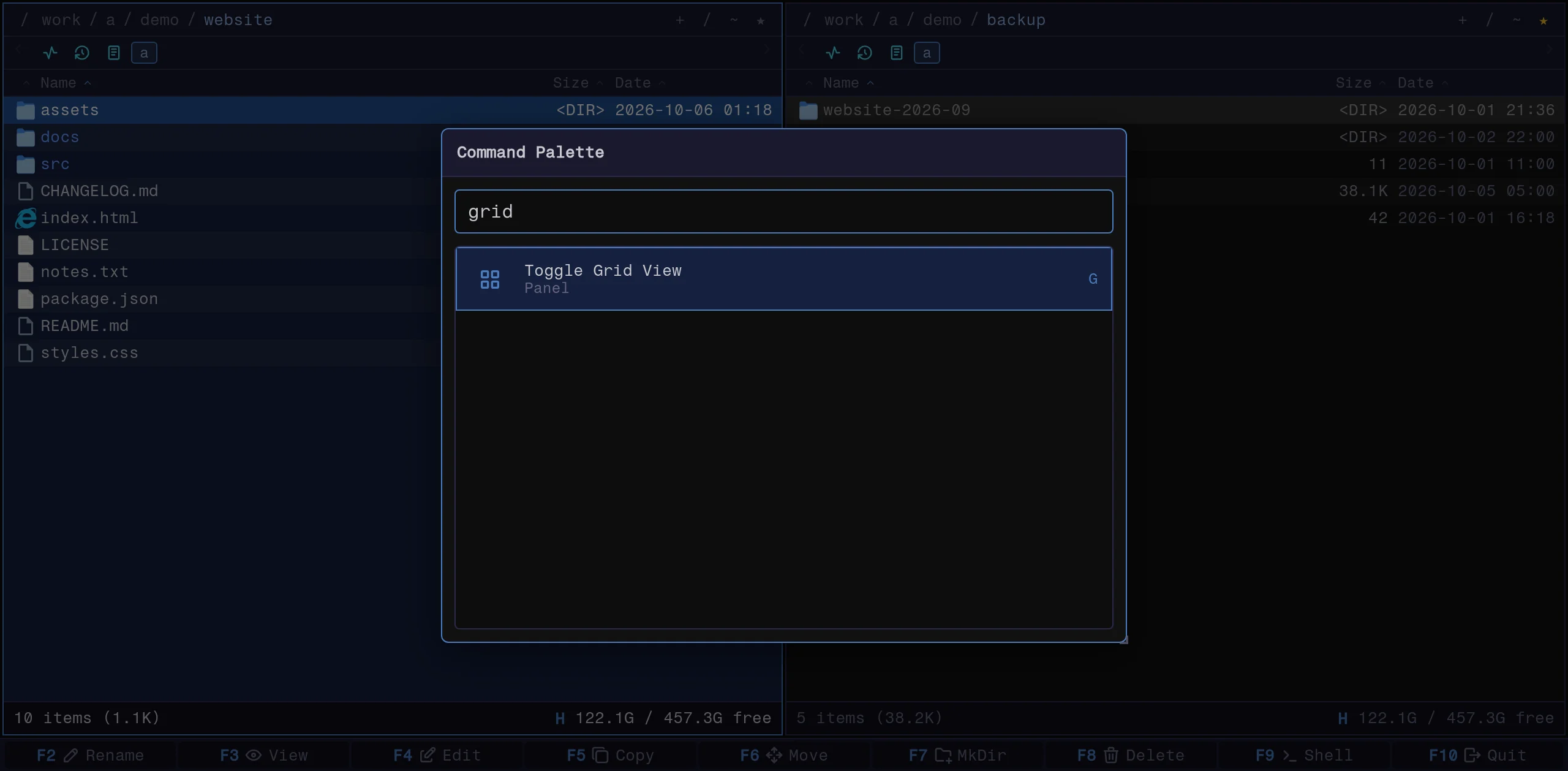
Section titled “Command palette”Press Ctrl+Shift+P (macOS: Cmd+Shift+P) and type part of a command’s name. The palette lists matching commands with their shortcuts. Use Up and Down to choose and Enter to run.
Commands that have no default key are easiest to reach from here, for example:
- Compare
- Toggle Button Bar
- Install fbro Shell Command
- Eject Removable Source (Linux and macOS)
- About fbro, whose User guide button opens this guide
Cheat sheet
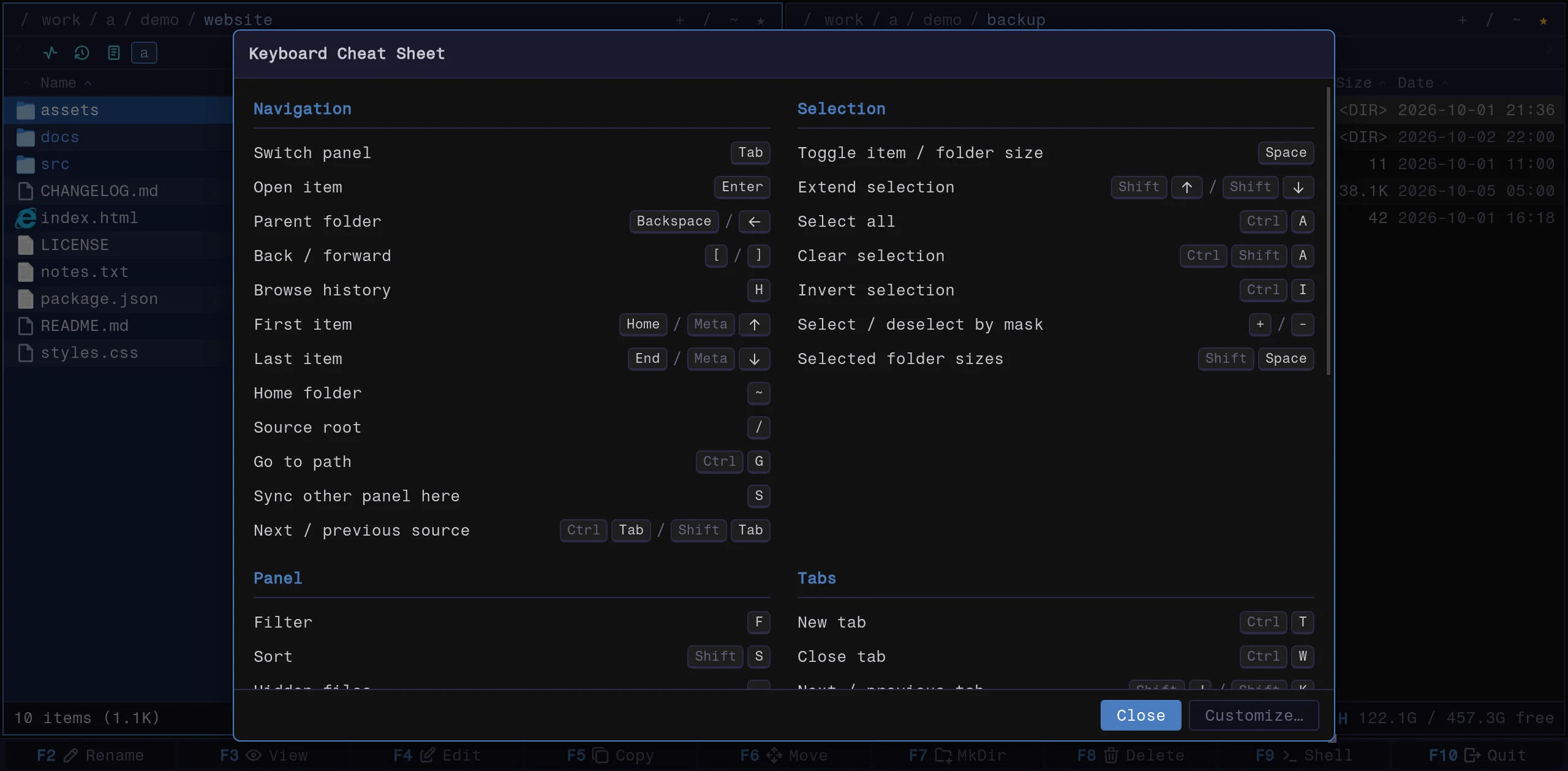
Section titled “Cheat sheet”? opens the keyboard cheat sheet, grouped into navigation, selection, panel, tabs, files and app commands. It shows your current bindings, including any you’ve changed. The keys on the bottom button bar aren’t repeated there.
For the defaults on every platform, see the keyboard shortcuts reference.
Context menu
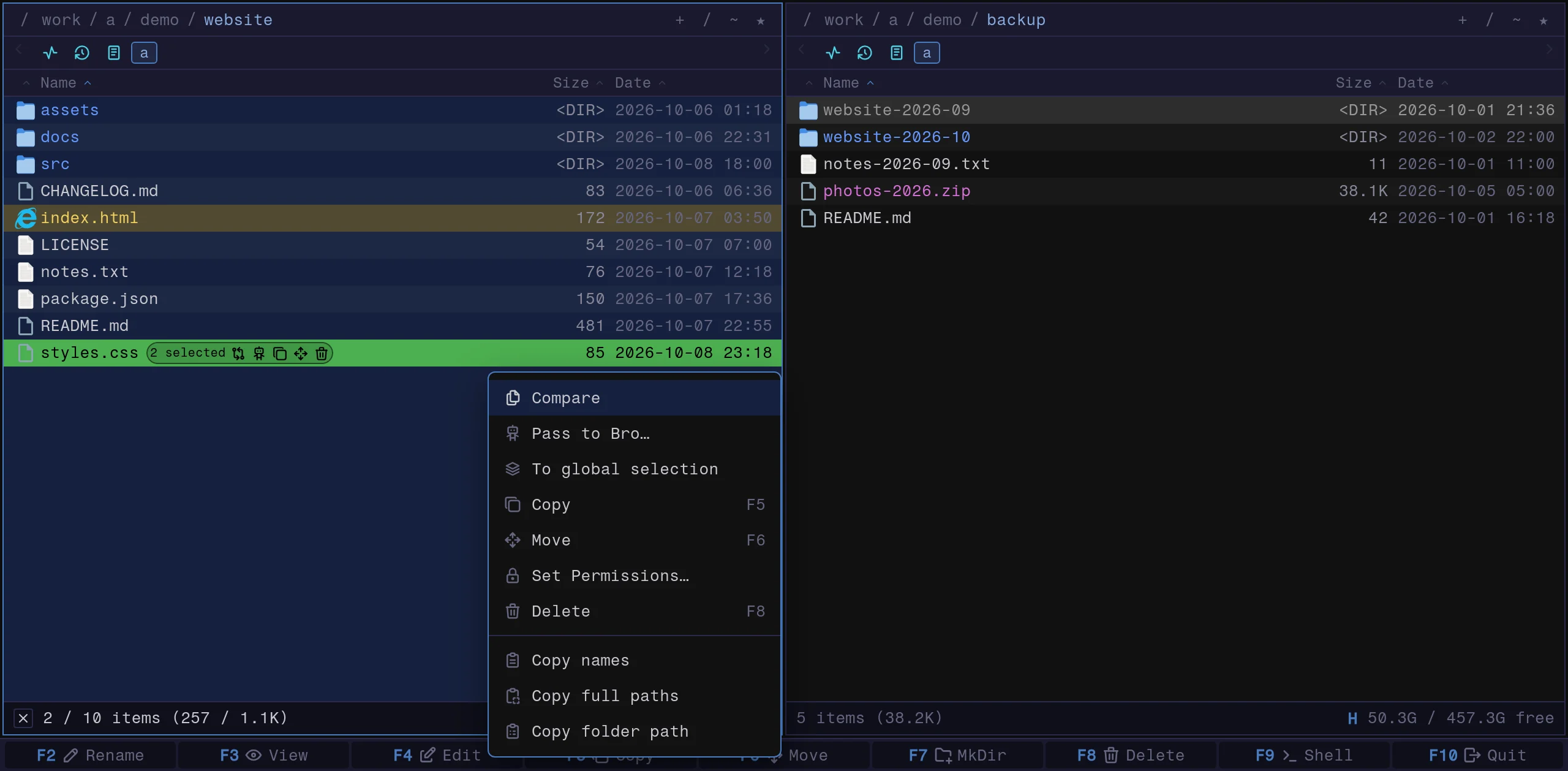
Section titled “Context menu”C opens the context menu for the cursor item, or for the whole selection when the cursor is on a selected item. The ContextMenu key and Shift+F10 open it too, and so does a right click.
Depending on the item and where it is, the menu offers:
- Open containing folder (macOS: Open in Finder, Windows: Show in Explorer)
- Edit in Editor Tab, Compare, View Git diff
- Initialize Git repository… for a folder
- Pass to Bro…, To global selection, Open With…
- Copy, Move, Rename, Set Permissions…, Delete
- Copy name and Copy full path (Copy names and Copy full paths for a selection), and Copy folder path for the folder the panel shows
Items that don’t apply are left out rather than greyed out.
Change a shortcut
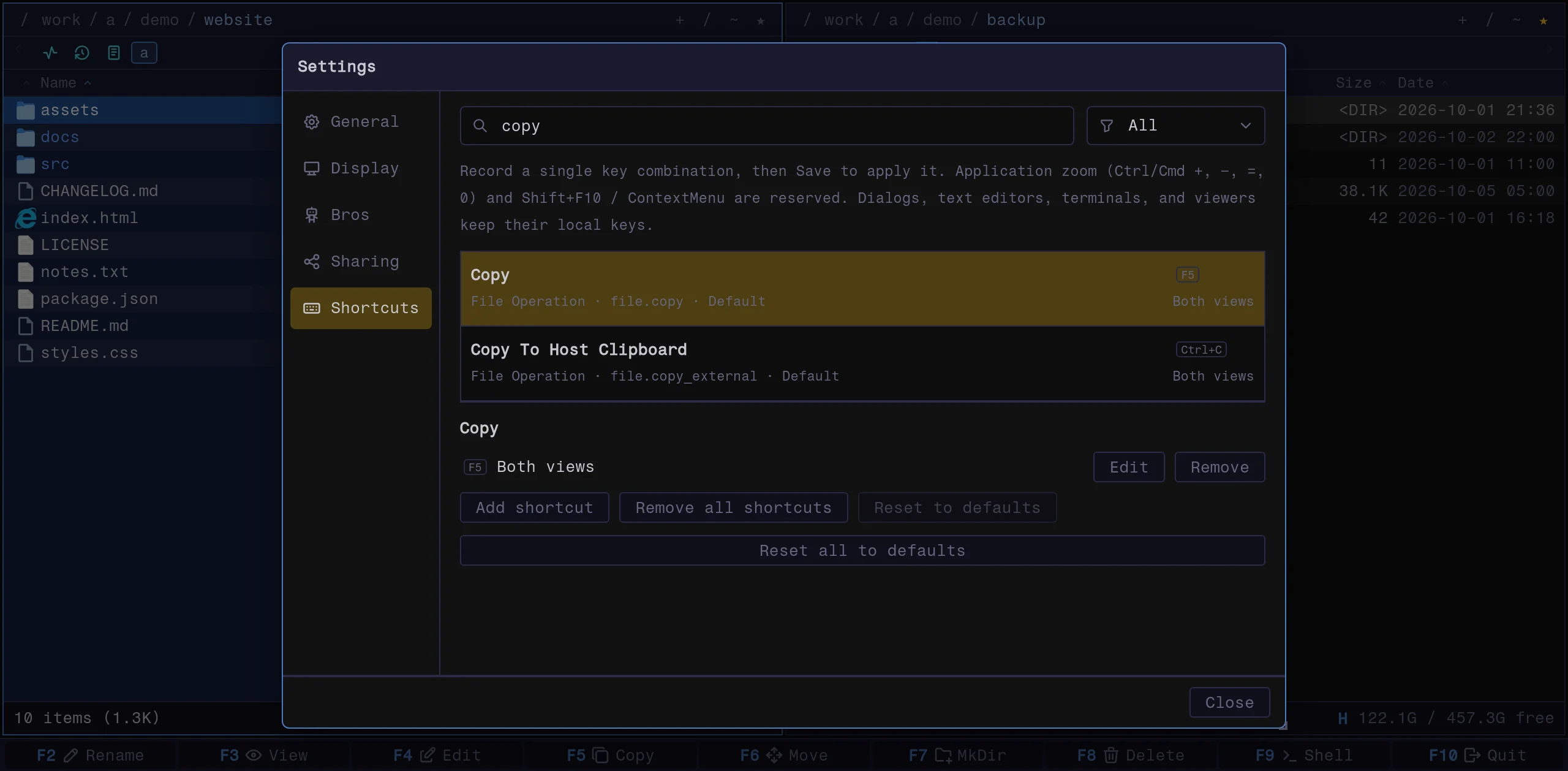
Section titled “Change a shortcut”Open Settings (Ctrl+, (macOS: Cmd+,)) and go to the Shortcuts tab.
- Find the command. The search box matches names, command IDs and shortcuts, and the filters narrow the list to All, Customized or Unassigned commands.
- Choose Add shortcut, or Edit or Remove an existing one. When recording, press the key combination you want.
- Choose whether the binding applies in Both views, List only or Grid only.
If the new key is already used by another command, fbro tells you which one. Choose Override to move the key to your command, or Abort to keep things as they were. Reset to defaults brings back a command’s default bindings, and Reset all to defaults does it for every command.
A few keys can’t be assigned: Ctrl/Cmd with +, -, = or 0 (zoom), and ContextMenu / Shift+F10 (context menu).
Letter and digit shortcuts follow the key’s physical position, so they keep working with macOS Option and with non-Latin keyboard layouts.