
Sorting & filtering
Sort the listing
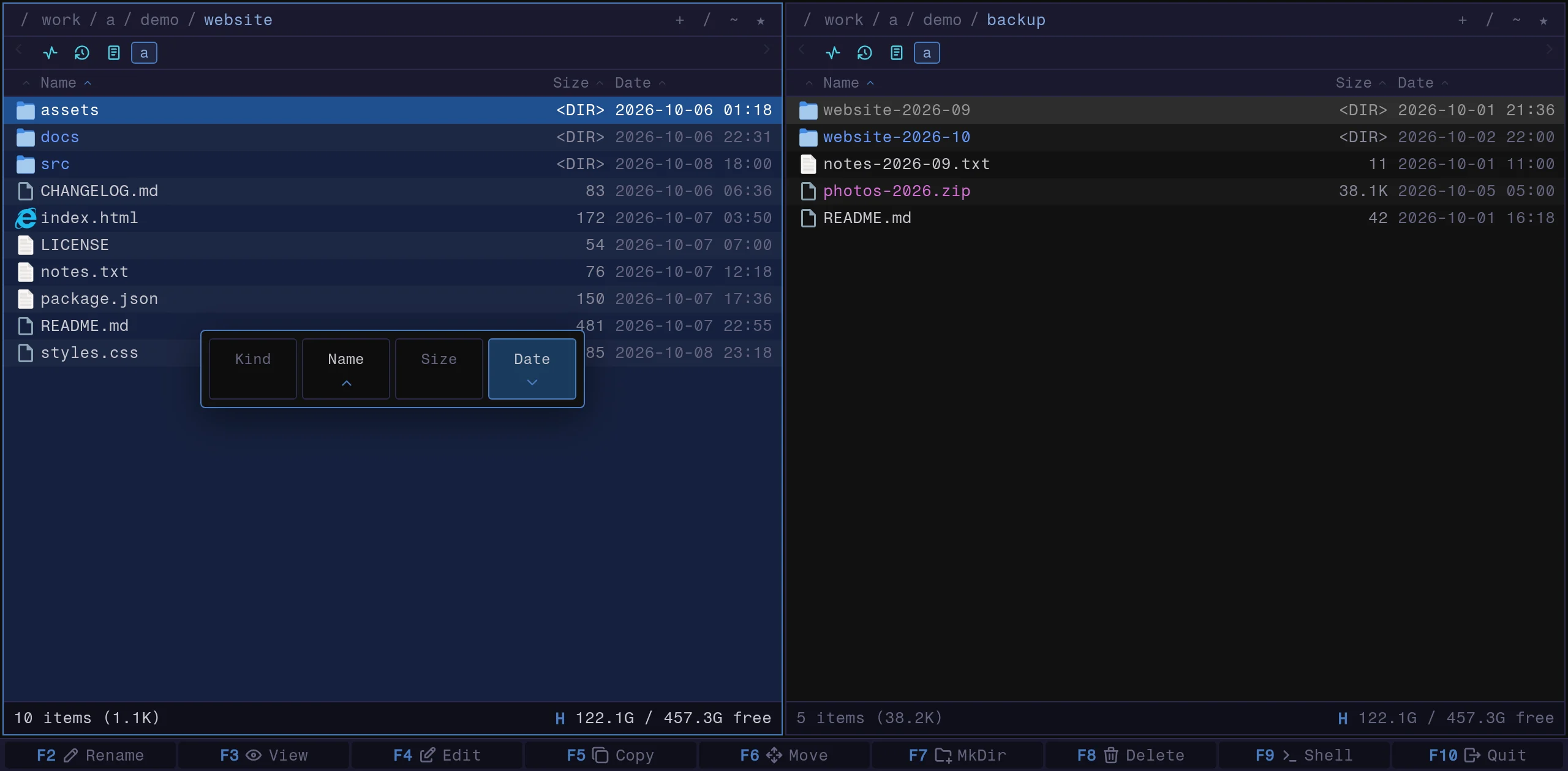
Section titled “Sort the listing”Press Shift+S to open the sort selector:
- Left and Right choose the column: Kind, Name, Size or Date.
- Up and Down switch between ascending and descending order.
- Enter applies the sort and Escape cancels.
You can also click a column header in list view.
Remember sorting per location
Section titled “Remember sorting per location”By default each panel keeps its own sort order. Turn on Remember sorting per location in Settings → General (Ctrl+, (macOS: Cmd+,)) to have fbro remember the sort order of each folder separately, in every panel and tab and across restarts.
Filter the listing
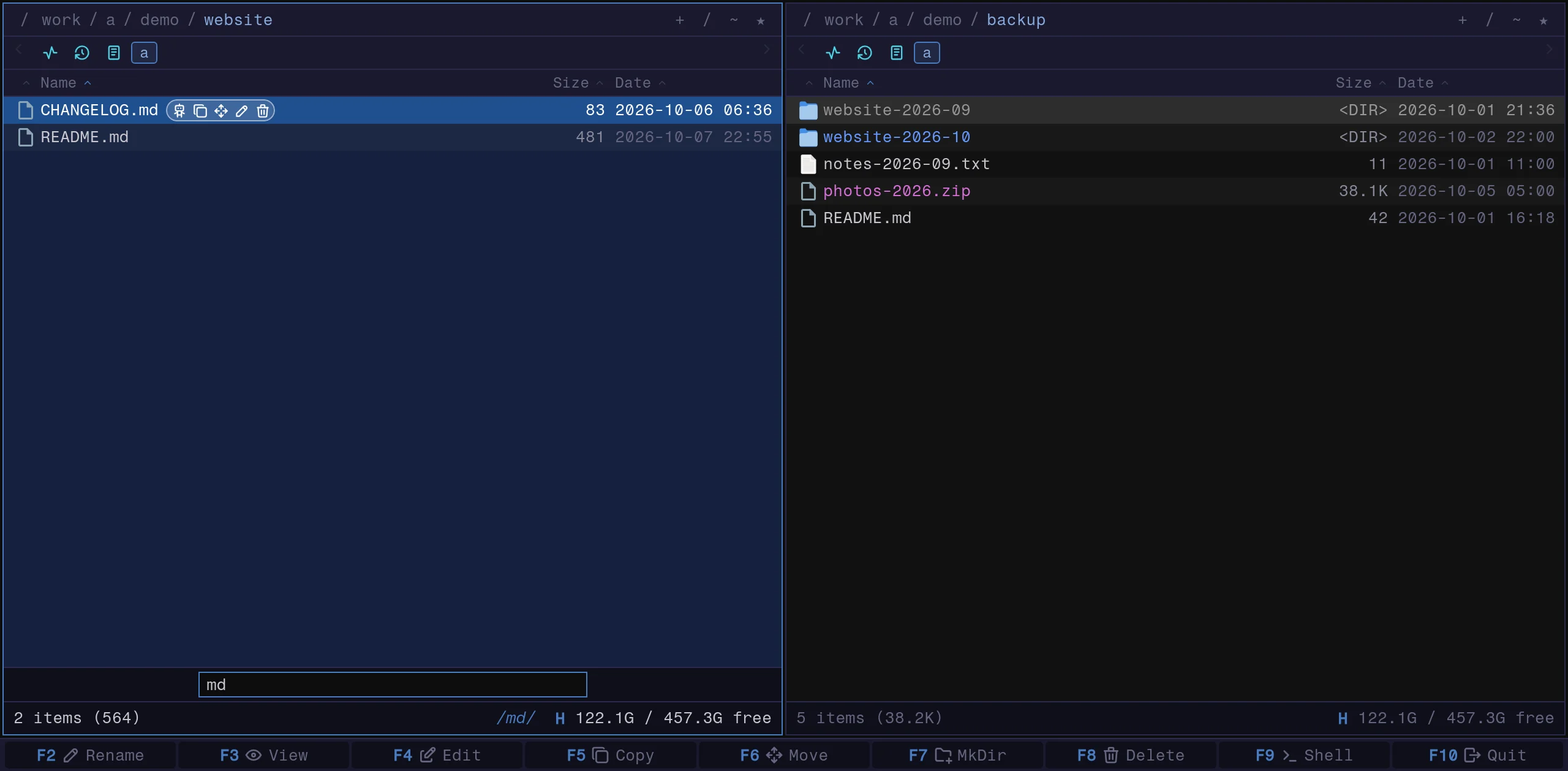
Section titled “Filter the listing”Press F and start typing. The listing narrows to matching names as you type.
- Text without
*matches anywhere in the name:reportfinds2026-report-final.pdf. - Text with
*must match the whole name:*.pdfshows only PDFs. - Separate alternatives with
|:*.jpg|*.png. - Matching ignores case.
While the filter field is open, Up, Down and the other listing keys still move the cursor. Press Enter to keep the filter and go back to the listing, or Escape to clear it.
The footer shows the active filter as /pattern/. Press
F again to change it.
Hidden files
Section titled “Hidden files”. shows or hides hidden files (names starting with a dot) in the active panel. While they’re hidden, the footer shows an H badge; click it to show them.
To show hidden files in every new panel, turn on Show hidden files by default in Settings → General.