
Tabs
Each panel can hold several tabs. A tab remembers its own folder, cursor, selection, sort order and view mode. The tab bar only appears once a panel has more than one tab.
There are three kinds of tab:
- Listing tabs show a folder, an archive, search results or any other source.
- Terminal tabs run a shell. See Terminal.
- Editor tabs edit a text file inside fbro. See Editing.
Open, switch and close tabs
Section titled “Open, switch and close tabs”| Action | Keys |
|---|---|
| New tab | Ctrl+T (macOS: Cmd+T) |
| Close tab | Ctrl+W (macOS: Cmd+W) |
| Next tab | Ctrl+Tab |
| Previous tab | Ctrl+Shift+Tab |
A new tab opens on the same folder as the current tab when that’s a folder on a local disk, and on your home folder otherwise. Next and previous wrap around at the ends, and they also work while you’re typing in an editor tab.
With the mouse:
- Click a tab to switch to it.
- Middle-click a tab, or click its ×, to close it.
- Right-click a tab for Duplicate, which opens a copy of that tab next to it, Close, Close others, Close to the left and Close to the right. Duplicate is offered for folders on a local disk; the close entries appear only when they would close something.
- Double-click empty space in the tab bar, or click + in the path bar, to open a new tab.
- Drag a tab to reorder it within its panel. Press Escape during the drag to cancel. Reordering is mouse-only.
The last tab in a panel can’t be closed. An editor tab is the exception: closing it turns it back into a listing of the file’s folder.
Closing a tab you are not looking at leaves the visible tab alone — useful when several tabs show the same folder. Closing the tab you are looking at moves the panel to the tab on its left, or to the new first tab when it was leftmost.
Find a tab in a long strip
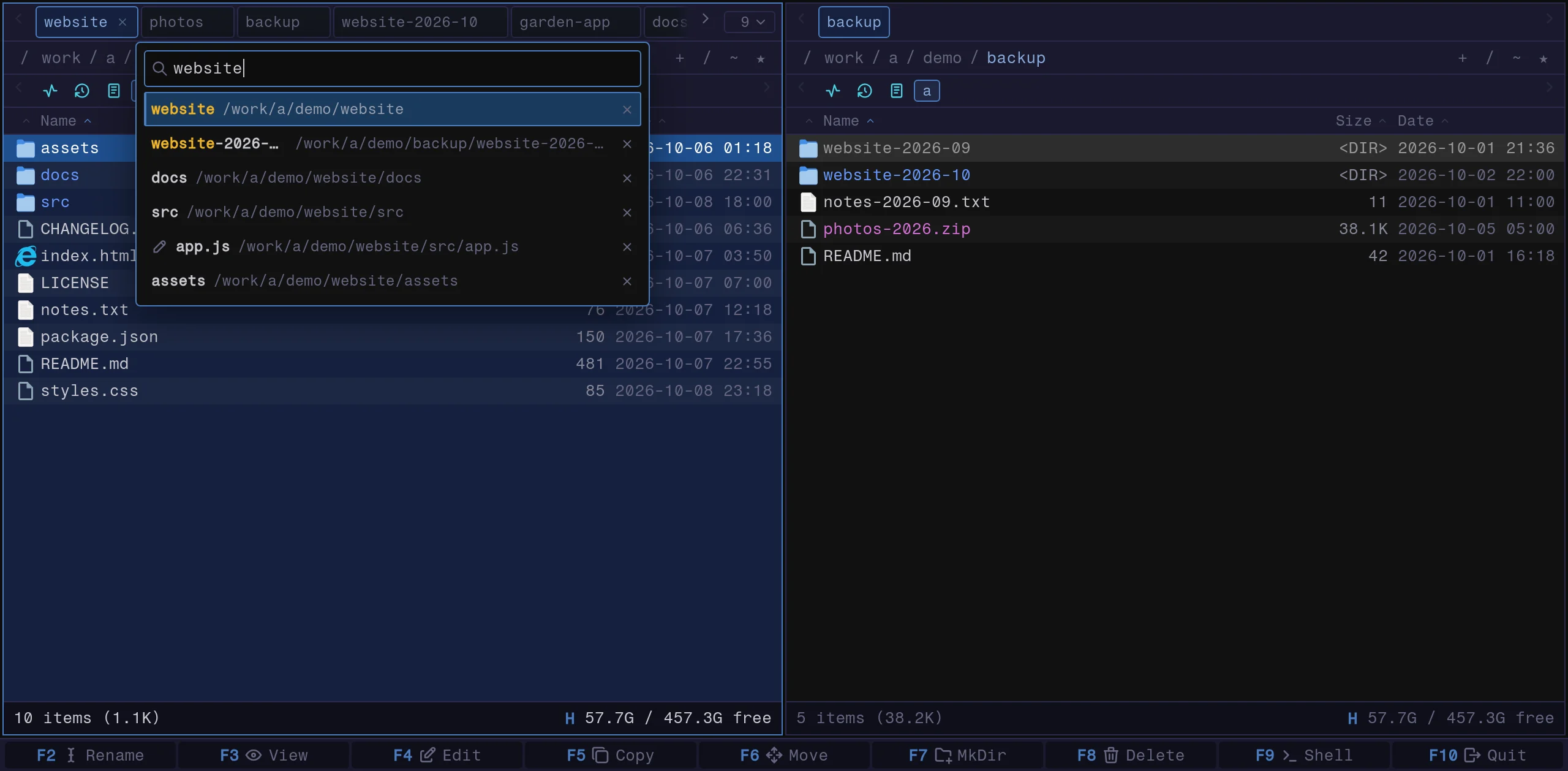
Section titled “Find a tab in a long strip”Once the tabs no longer fit, the strip shows a button with the tab count at its right end. Click it, or press Ctrl+Shift+L (macOS: Cmd+Shift+L), to open a searchable list of that panel’s tabs:
| In the list | Keys |
|---|---|
| Filter by name or path | type |
| Move through the list | ↑ / ↓, Home / End, PgUp / PgDn |
| Switch to the highlighted tab | Enter, or click the row |
| Close the highlighted tab | Delete or Ctrl/Cmd+W, or click its × |
| Reach a row’s × by keyboard | →, then Enter or Space closes that tab |
| Hand the focus back to the search field | ←, or any ↑ / ↓ / Home / End / PgUp / PgDn |
| Close the list, changing nothing | Escape, or click outside |
Matching letters are marked in the tab name, and each row also shows the folder or file it points at. Closing an editor tab saves it first, exactly like closing it from the strip; closing a tab that way leaves the list open, and focus goes back to the search field. So does the next arrow key, so the × only ever sits on the row you stopped at. Typing always returns to the search field. The list appears only in a panel with two or more tabs.
Inside a terminal tab, Ctrl+Shift+L (macOS: Cmd+Shift+L) belongs to the shell, so use the count button or the command palette there. An editor tab hands that chord back to fbro. See Keys in an editor tab.
Tabs across restarts
Section titled “Tabs across restarts”fbro restores your tabs when it starts again:
- Listing tabs come back with their folders, sort order and cursor position.
- Editor tabs come back with their files.
- Terminal tabs are not restored.
To restore only the active tab in each panel, turn off Restore all panel tabs across sessions in Settings → General (Ctrl+, (macOS: Cmd+,)).