
Git
fbro recognises git repositories on your local disks and shows their state right in the listing. Everyday git work happens in the Git Repository dialog, without leaving the file manager.
Status in the listing
Section titled “Status in the listing”Inside a repository:
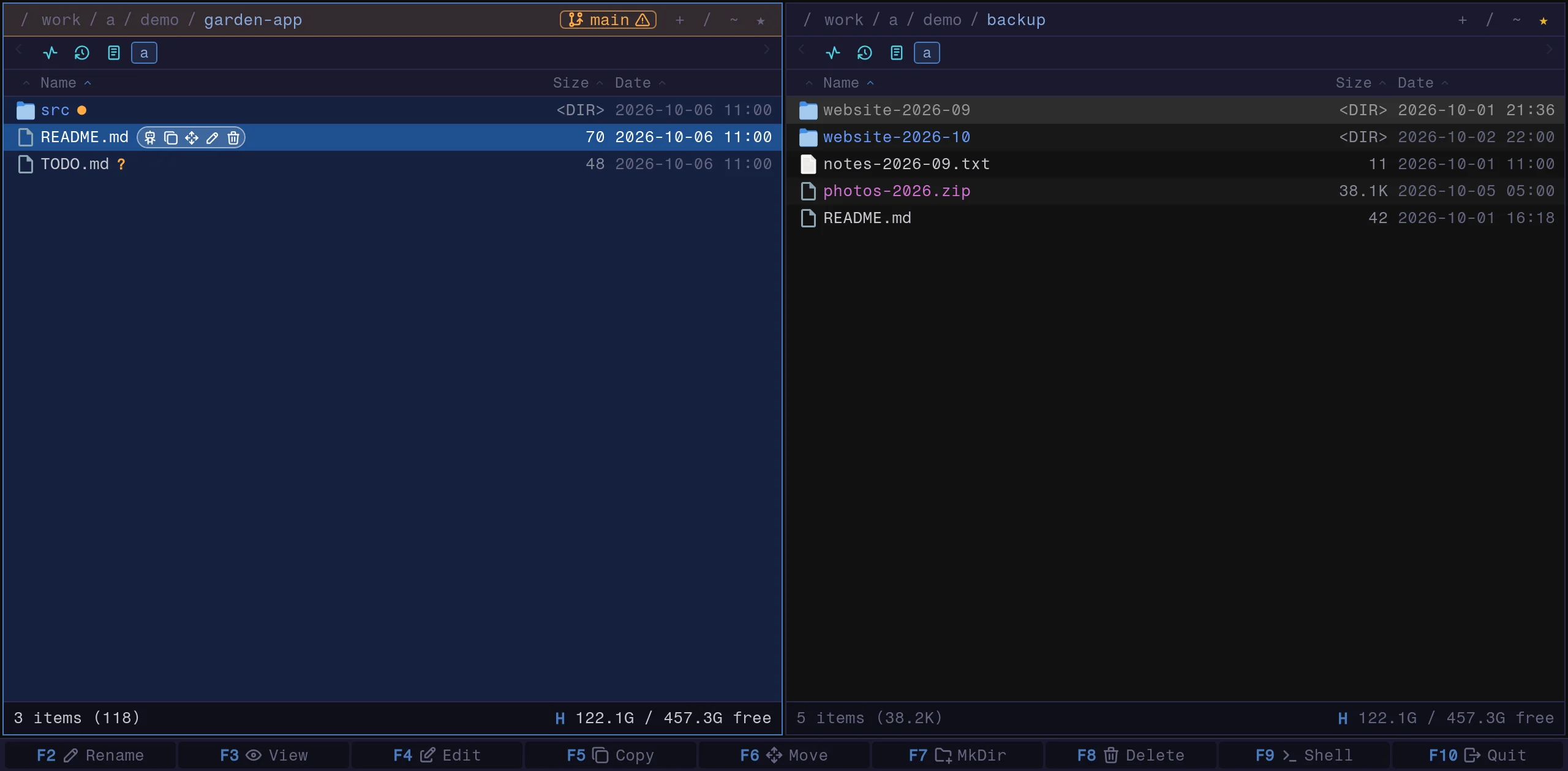
- The path bar shows the current branch. A warning icon next to it means there are staged changes.
- Changed files carry a marker: M modified, D deleted, ? untracked, ! conflicted, and ● for other changes such as staged new files. Hover the marker for details.
- On a changed file, the inline choices lead with View Git diff, Stage or Unstage, and Rollback. Edit follows them when the file is text. Rollback discards your changes to the file, so it asks you to confirm in place first.
The Git Repository dialog
Section titled “The Git Repository dialog”Press Shift+G anywhere in a repository, or click the branch in the path bar.
Toolbar
Section titled “Toolbar”| Key | Action |
|---|---|
| B | Branch picker: type to filter local and remote branches, Enter to switch |
| N | New branch…: enter a Branch name and choose Create & switch |
| L | Pull, when the branch is behind and nothing is staged; shows how many commits are incoming |
| P | Push; shows how many commits are outgoing |
| U | Set upstream: push a branch that has no upstream yet to origin |
| F | Fetch: update remote branch information |
| R | Refresh: fetch and refresh the status |
Picking a remote branch creates a local branch that tracks it, or switches to the one that already exists.
If a push is rejected, fbro offers to retry it as a force push: either one that overwrites the remote branch, or a safer one that refuses to overwrite remote changes you haven’t fetched.
Changes
Section titled “Changes”The Changes tab lists changed files. Move with J / K or the arrow keys:
- S stages or unstages the file;
- V views its diff;
- Ctrl+↓ (Cmd+↓ on macOS) jumps to the file: the dialog closes and the panel opens its folder with the cursor on it.
To commit, stage what you want, type a Commit message and choose Commit staged (C).
Files inside new folders are listed one by one. When there are more than 1,000
untracked files, the tab shows a single line with their count instead; add them to
.gitignore or stage them from a terminal.
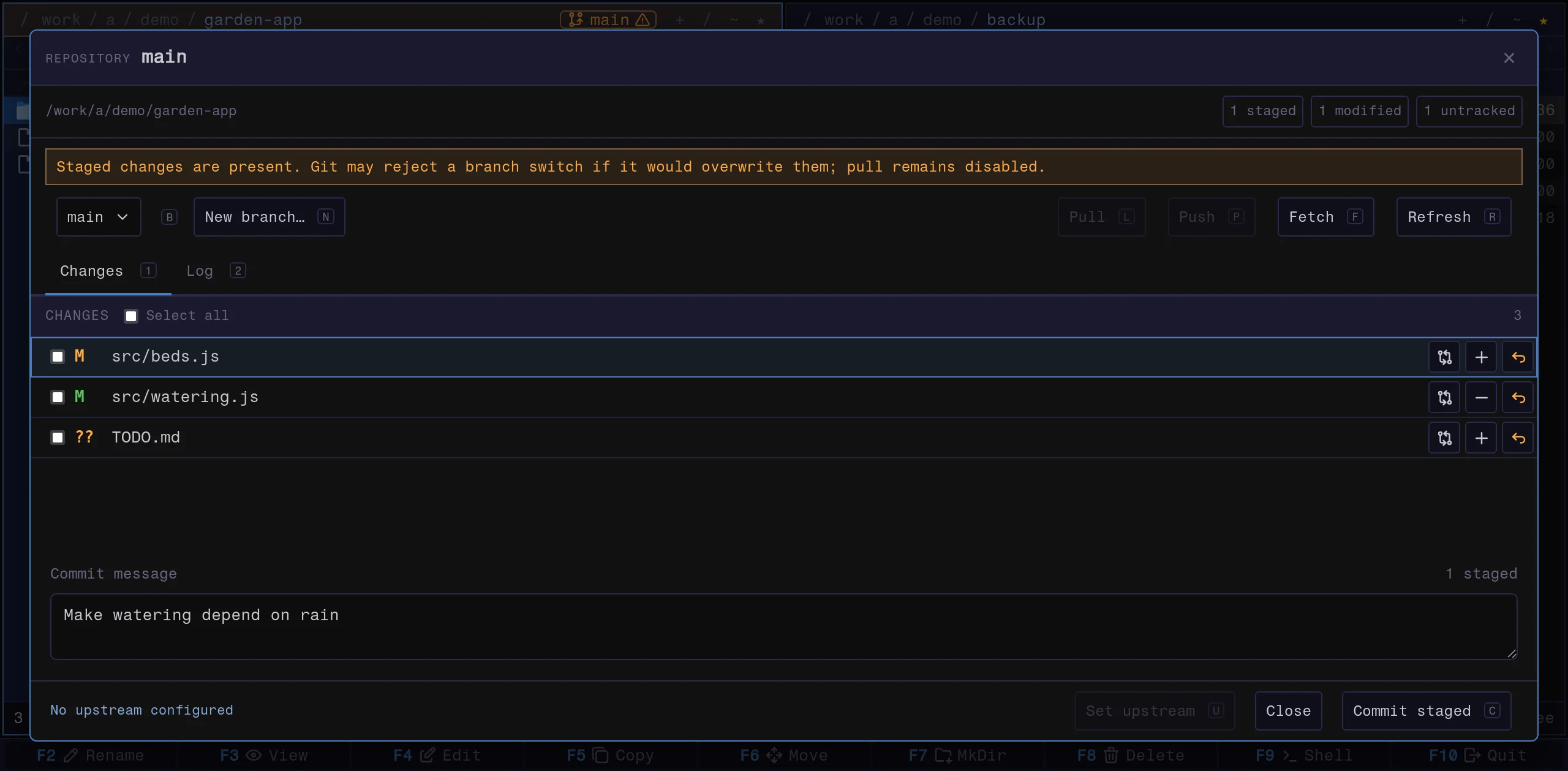
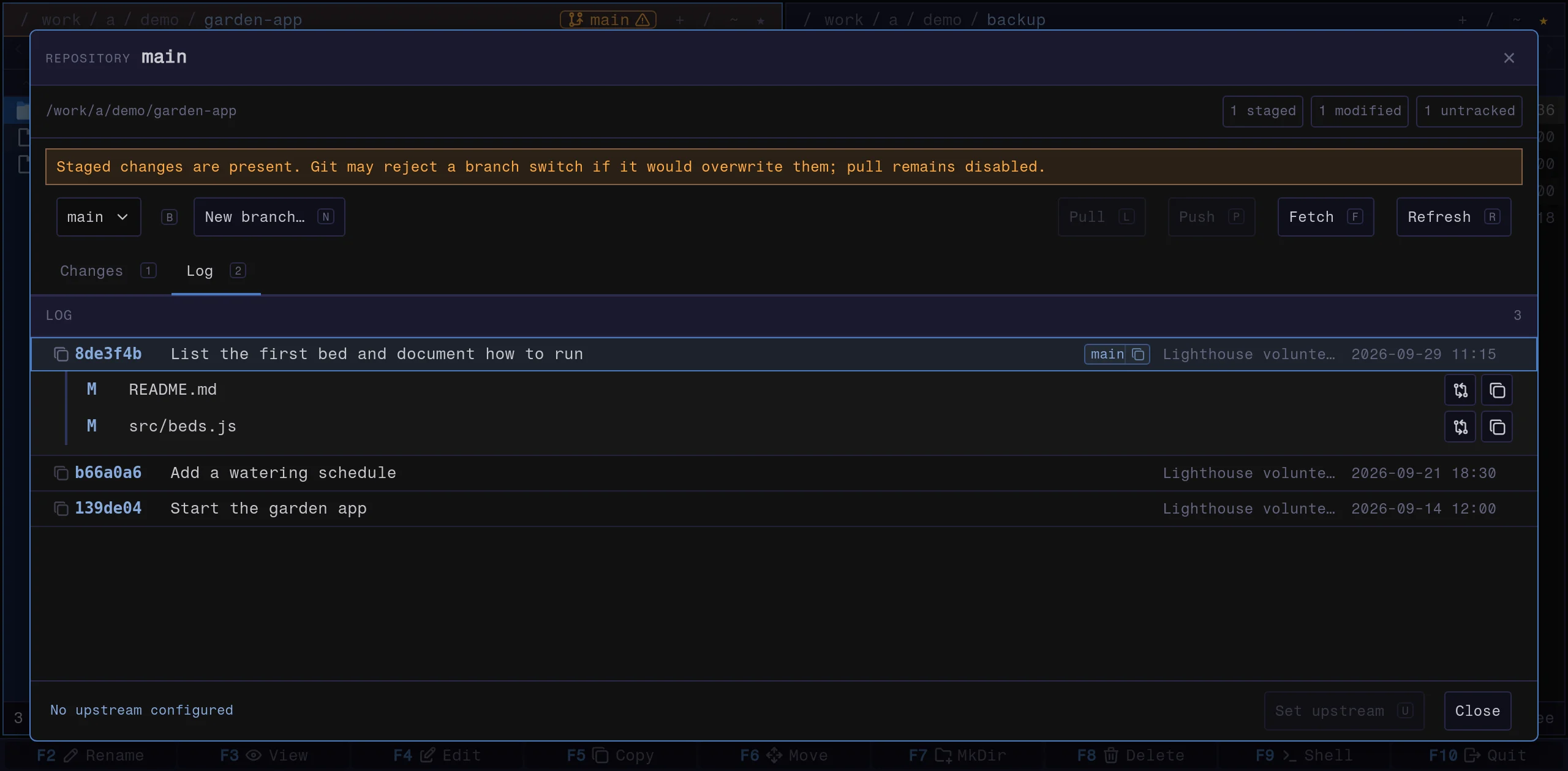
The Log tab lists commits, newest first. Expand a commit to see the files it changed.
- J / K or the arrow keys move through commits and files.
- Y copies the commit’s full hash.
- V views a file’s diff in that commit.
- C copies a reference to the file as it was in that commit. Paste it into any folder (Ctrl+V (macOS: Cmd+V)) to get a copy of that version.
- Ctrl+↓ (Cmd+↓ on macOS) jumps to the file in the working tree, if it still exists there.
- Space on the last row loads more commits.
Escape closes the dialog. If a git command is still running, it carries on in the background.
Diffs open in the diff window. From the list of changes, J and K in the diff window move to the next and previous changed file.
Start a repository
Section titled “Start a repository”To turn a folder into a git repository, open the context menu on it (C) and choose Initialize Git repository…, or run the same command from the command palette for the current folder. Enter the initial branch name and press Enter.