
First launch
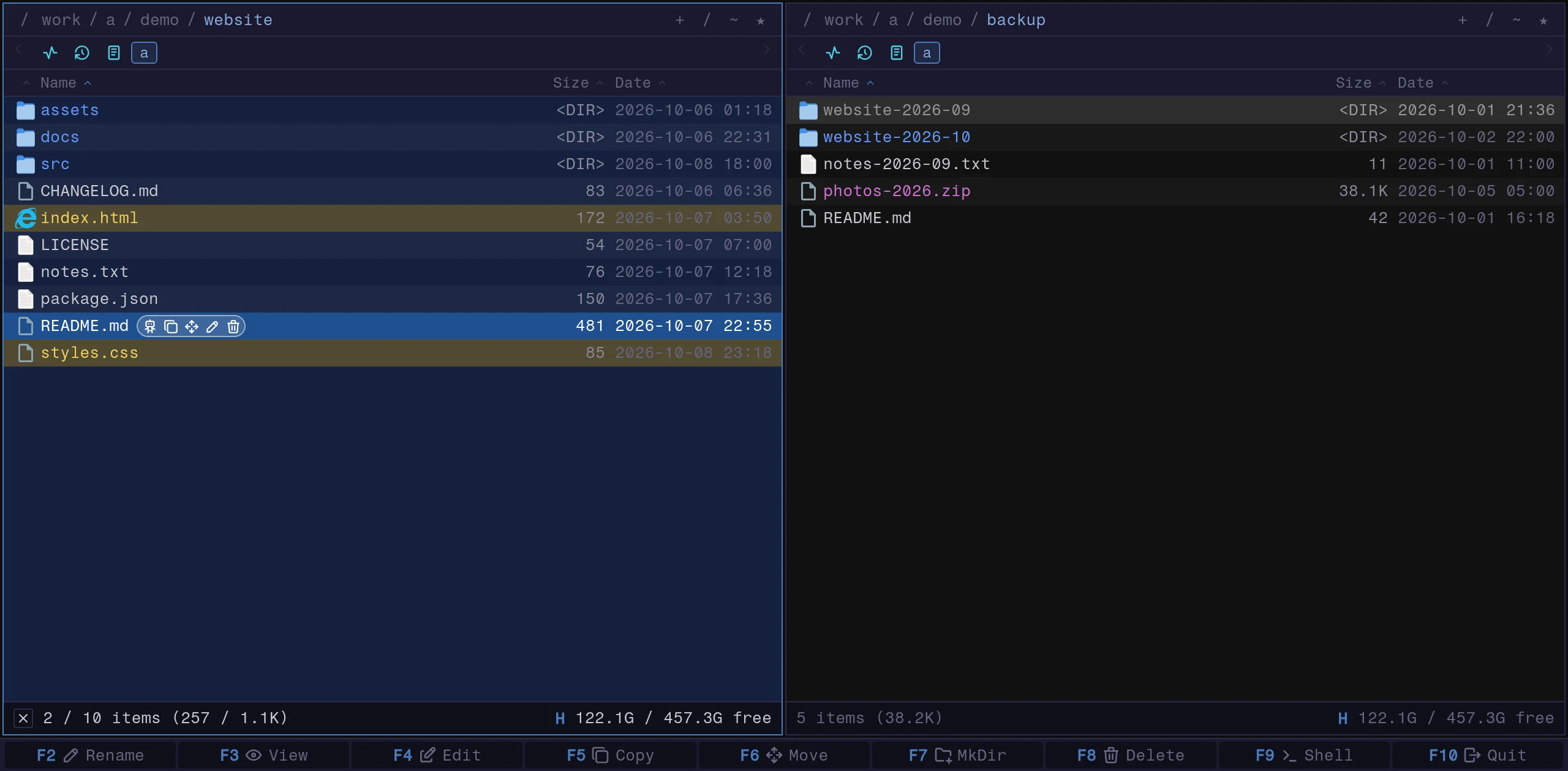
The fbro window has two panels side by side, with a button bar along the bottom. One panel is active at a time: it has the highlighted border, and it receives your keys. Tab switches to the other panel.
A panel, top to bottom
Section titled “A panel, top to bottom”Tab bar. It appears above the path bar once a panel has a second tab. Each panel can hold several tabs. A tab is a folder listing, a terminal or an editor. Ctrl+T (macOS: Cmd+T) opens a tab and Ctrl+W (macOS: Cmd+W) closes it. When the strip fills up, a count button appears at its right end; click it, or press Ctrl+Shift+L (macOS: Cmd+Shift+L), to open a searchable list of that panel’s tabs. See Tabs for details.
① Path bar. The current folder as clickable breadcrumbs. Inside a git repository it also shows the current branch; click it, or press Shift+G, for git actions. On the right are quick buttons: new tab (+), source root (/), home folder (~) and bookmarks (★).
② Source bar. Everything the panel can browse: your volumes and disks, plus virtual sources such as Processes and the activity Journal. A paired remote fbro appears here too. Press Shift+Tab to move to the next source.
③ Listing. The files themselves, as a list or as a thumbnail grid (G). The highlighted row is the cursor. Selected items are tinted; most operations act on the selection, or on the cursor item when nothing is selected.
④ Footer. Item count and total size, the selection summary, the active filter, an H badge while hidden files are hidden (. shows them), and the free space on the volume.
The button bar
Section titled “The button bar”⑤ The bottom row lists the most common operations together with their keys. On Linux and Windows these are the classic function keys F2 to F10. On macOS they are the plain digit keys 2 to 0 by default, because Mac keyboards need fn for F-keys (and Touch Bar Macs have none).
If your Mac is set to use F1, F2, etc. as standard function keys (System Settings → Keyboard → Keyboard Shortcuts → Function Keys), fbro offers once to switch the bar to F1–F10. You can switch either way later under Button bar keys in the Shortcuts tab of Settings.
| Button | Linux / Windows | macOS |
|---|---|---|
| Rename | F2 | 2 |
| View | F3 | 3 |
| Edit | F4 | 4 |
| Copy | F5 | 5 |
| Move | F6 | 6 |
| MkDir | F7 | 7 |
| Delete | F8 | 8 |
| Shell | F9 | 9 |
| Quit | F10 | 0 |
F1 (macOS: 1) is not on the bar, but it is the key you’ll want next: it opens Pass to Bro, the menu of extra tools for the current selection.
The jobs bar
Section titled “The jobs bar”When a copy, move, delete or search is running, a jobs bar appears above the button bar with its progress. J opens the Jobs dialog, where you can pause, skip or cancel. Pressing Escape in a running job’s dialog sends the job to the background; it never cancels it.
Two keys to remember
Section titled “Two keys to remember”- Ctrl+Shift+P (macOS: Cmd+Shift+P) opens the command palette. Type part of any command’s name to run it. The palette also shows each command’s shortcut.
- ? opens the keyboard cheat sheet.
Where fbro keeps its data
Section titled “Where fbro keeps its data”Settings, bookmarks, the session (open tabs and folders), custom color schemes and scratch notes live in one folder:
| Platform | Folder |
|---|---|
| Linux, macOS | $XDG_CONFIG_HOME/fbro, or ~/.config/fbro |
| Windows | %USERPROFILE%\.config\fbro |