
Bookmarks & history
Bookmarks
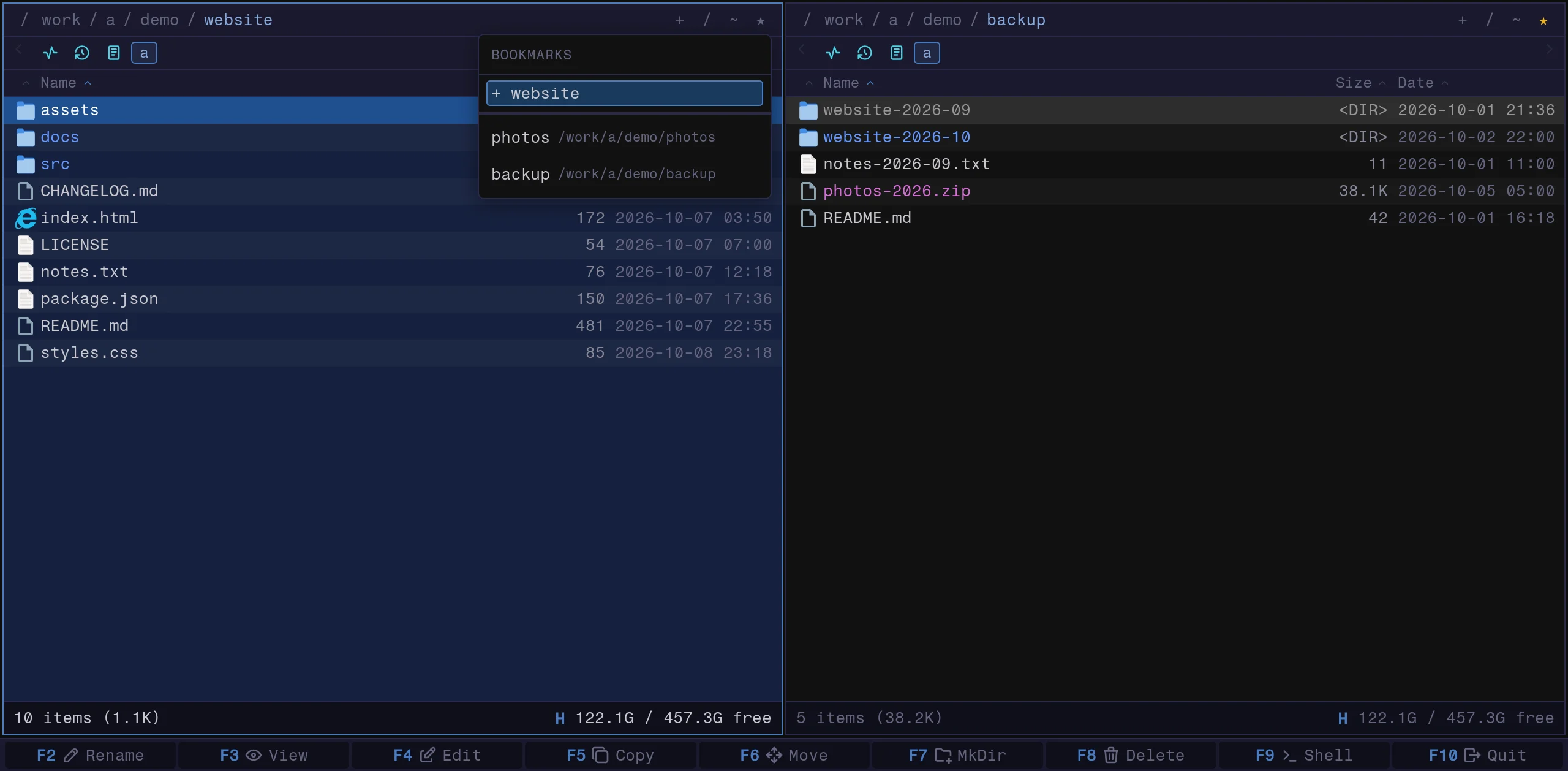
Section titled “Bookmarks”Press Ctrl+D (macOS: Cmd+D), or click ★ in the path bar, to open the Bookmarks popover.
- The first entry bookmarks the current folder, or removes it if it’s already bookmarked. The ★ is highlighted when the current folder is a bookmark.
- Move through the list with Up and Down, and press Enter to go to a bookmark.
- Each bookmark has a Remove bookmark button.
- Escape closes the popover.
Browse bookmarks as a listing
Section titled “Browse bookmarks as a listing”Ctrl+Shift+D (macOS: Cmd+Shift+D) opens your bookmarks in the panel itself, as a list you can move through with the usual keys. Open an entry to go to that folder.
History
Section titled “History”Each panel remembers the folders it has visited.
- [ and ] step back and forward.
- H opens Navigation History, a list of recent folders with the newest first. Choose one with Up and Down and press Enter to go there, or Escape to close the list.