
Pairing two machines
Two fbro instances can pair so that each can browse and copy from the folders the other one shares, for example your laptop and a home server. Both ends run fbro; nothing else needs to be installed or configured.
Everything happens in Settings → Sharing (Ctrl+, (macOS: Cmd+,)).
How it’s secured
Section titled “How it’s secured”- The connection is SSH with SFTP, built into fbro.
- Machines identify each other by key pair, not password. You confirm a 6-digit code on both screens once, when pairing; after that, only the paired key is accepted.
- Remote access is read-only. A paired machine can browse, view and copy your shared folders, but can’t change, delete or add anything.
- Only what you choose under Shared folders is visible.
Turn on remote access
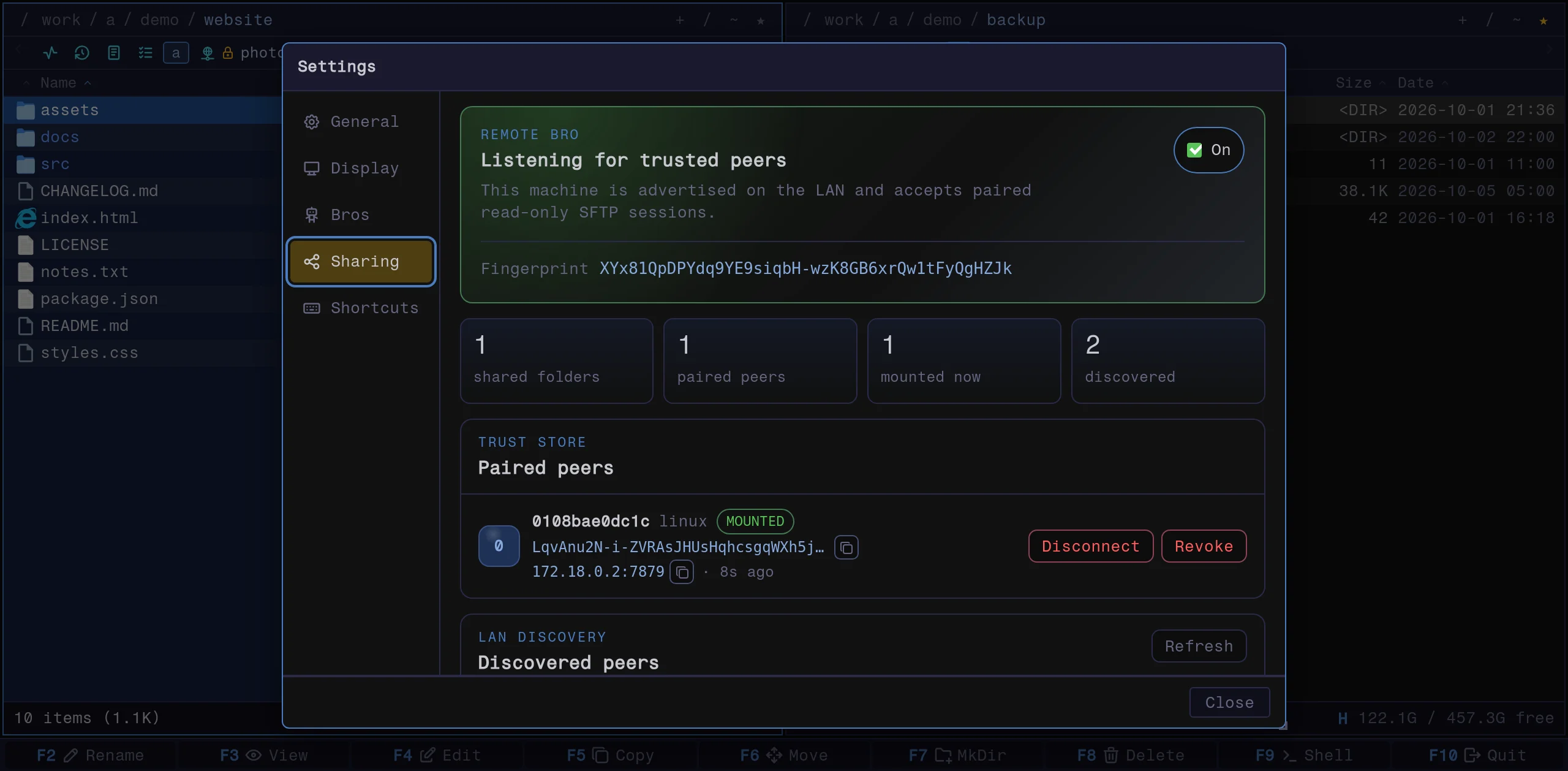
Section titled “Turn on remote access”On both machines, open Settings → Sharing and turn on remote access. The status changes from Remote access is off to Listening for trusted peers, and the machine starts advertising itself on the local network.
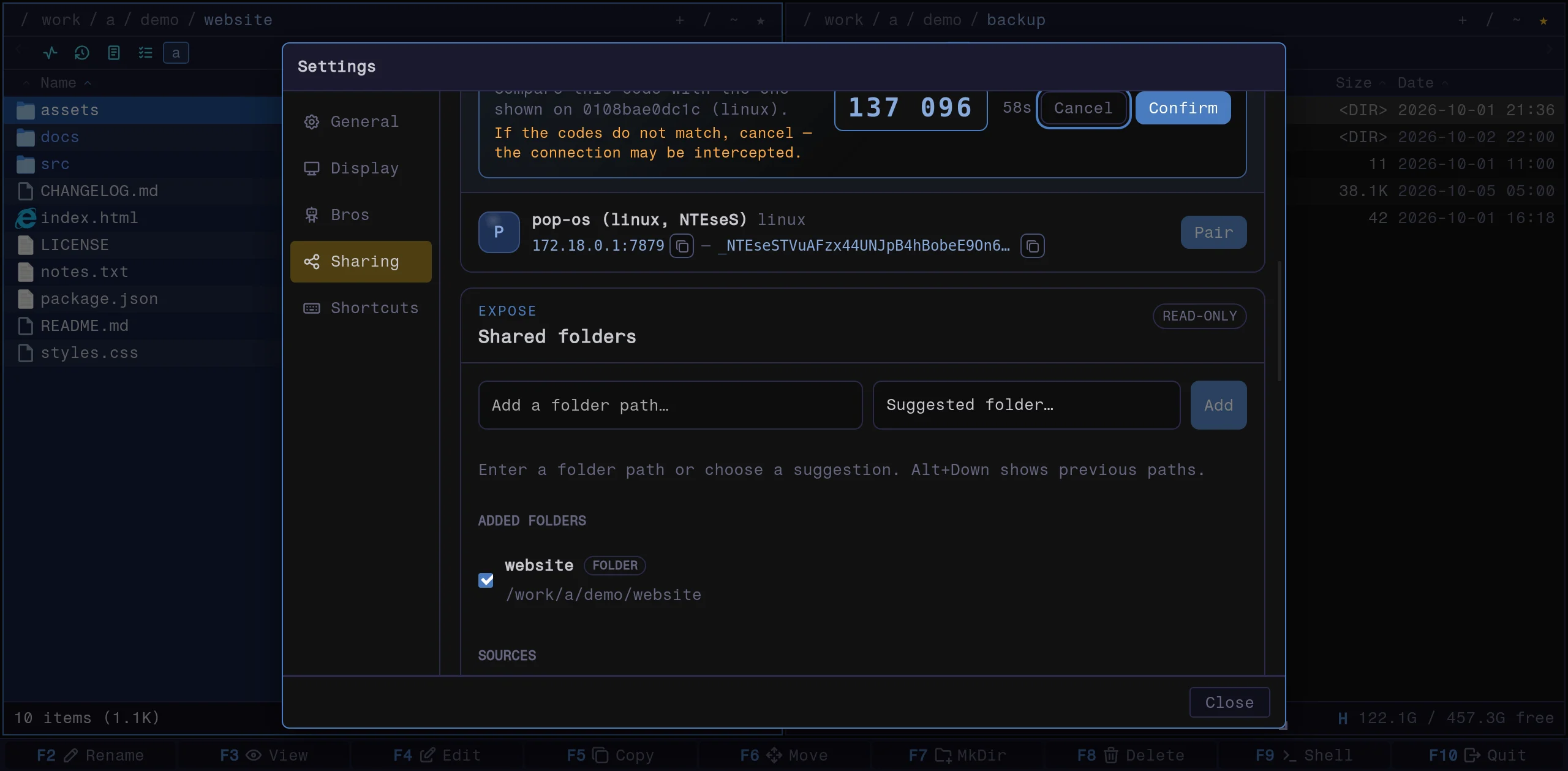
- On one machine, find the other under LAN discovery and choose Pair.
If it doesn’t show up, use Pair directly: enter its host name or IP
address, for example
192.168.1.20. - Both machines show Confirm pairing with the other’s name, with a 6-digit code.
- Check that the codes match, then confirm on both machines. The first to confirm shows Confirmed here — waiting for the other fbro….
The machine then appears under Paired peers, together with its key Fingerprint.
Choose what to share
Section titled “Choose what to share”Under Shared folders:
- tick the disks and volumes, your home folder, or bookmarks to share;
- or type a path in Add a folder path… (or pick a Suggested folder…, such as the current folder) and choose Add. Added folders get their own checkboxes; untick one to stop sharing it.
Normal file permissions still apply: a peer can only read what your user account can read.
Connect, disconnect and revoke
Section titled “Connect, disconnect and revoke”- Connect mounts the peer’s shared folders as sources in your source bar. See Browse & copy.
- Disconnect unmounts them again.
- Revoke (click twice to confirm) removes the pairing. The peer has to pair again before it can connect.
Network details
Section titled “Network details”| Discovery | mDNS on the local network (UDP 5353) |
| Pairing | TCP 7880 |
| Browsing and copying (SFTP) | TCP 7879 |
| IPv6 | Off by default; turn on Allow IPv6 to use it |
If discovery doesn’t work, see Troubleshooting.