
Compare files
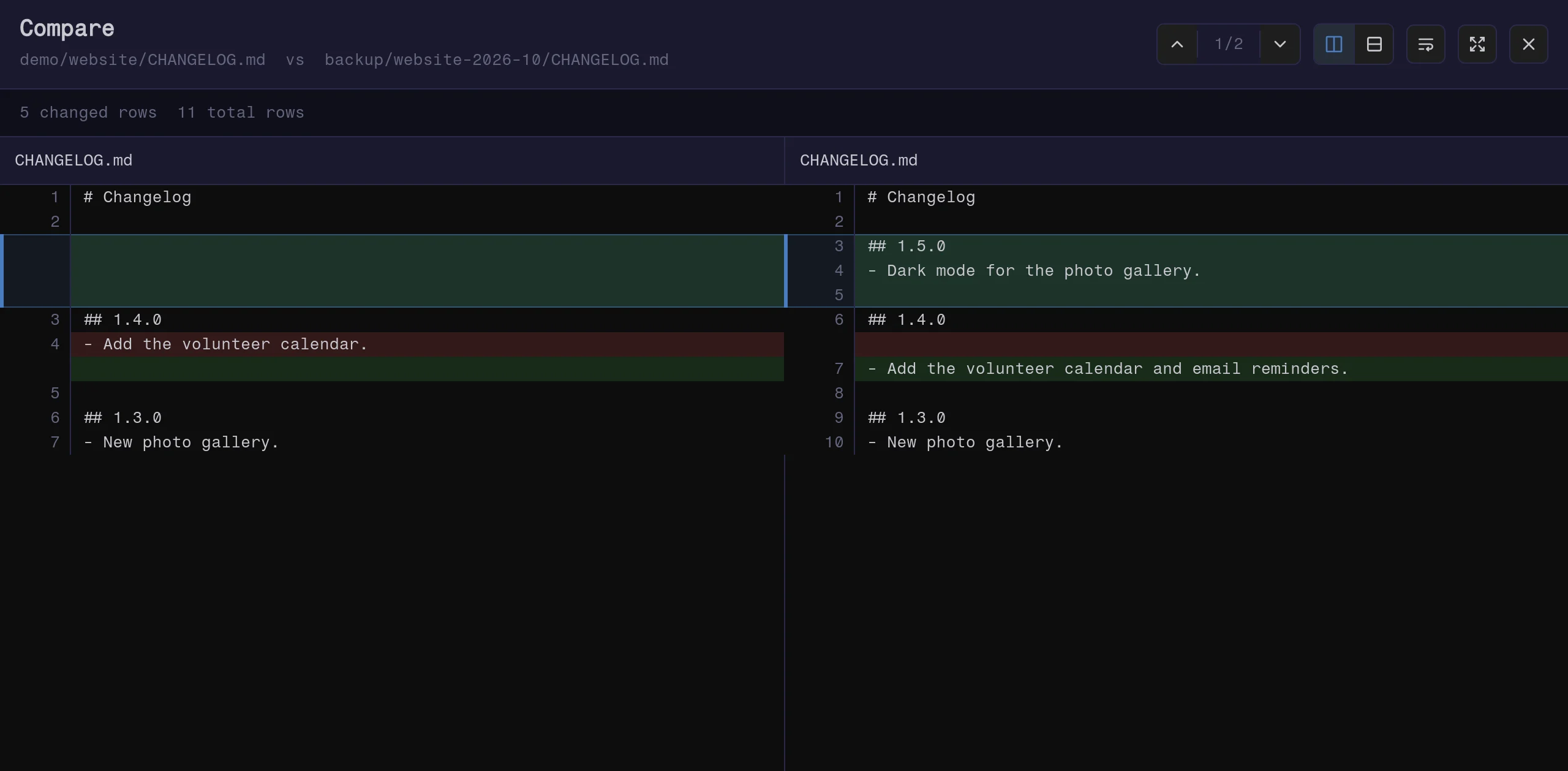
Compare shows the differences between two text files. It has no default key: run it from the command palette (Ctrl+Shift+P (macOS: Cmd+Shift+P)), the context menu (C) or the row’s inline choices.
Choose the two files
Section titled “Choose the two files”Any of these works:
- Select two files in the same panel.
- Select one file and put the cursor on another.
- Select one file in each panel.
The files must be UTF-8 text and no larger than Maximum text file size (MiB): in Settings → Display.
The diff window
Section titled “The diff window”The diff opens in its own window.
| Key | Action |
|---|---|
| S or 1 | Side-by-side view |
| U or 2 | Unified view |
| N / P | Next / previous change |
| Down / Up | Next / previous change (scroll one line when there’s only one change) |
| Left / Right | Scroll sideways |
| PageUp / PageDown, Home / End | Scroll |
| W | Word wrap on or off |
| M | Maximize or restore the window |
| C or Escape | Close |
In side-by-side view, both sides scroll together.
Git diffs
Section titled “Git diffs”For a changed file in a git repository, View Git diff (in the inline choices and the context menu) opens the same window with the committed version on one side and your working copy on the other. When you open it from the list of changed files, J and K move to the next and previous changed file.
Use your own diff tool
Section titled “Use your own diff tool”Settings → Display → Differ chooses what Compare opens:
- Internal, fbro’s own diff window (the default);
- External, the program in External differ executable:;
- Auto, which tries the external program first and falls back to the internal window if it can’t be started.
External tools only work for files on a local disk; others always use the internal window.