
Jobs
Copying, moving, deleting, searching, calculating folder sizes and most bros run as jobs in the background. You can keep browsing while they run.
Follow a job
Section titled “Follow a job”When you start an operation, its dialog shows the progress: files done, bytes copied and, for large transfers, the current speed. From there:
| Button | What it does |
|---|---|
| Background (Enter) | Hides the dialog. The job keeps running. |
| Pause / Resume (R) | Pauses the job, or continues a paused one. |
| Skip | Skips the file currently being copied and carries on with the rest. |
| Cancel | Stops the job. |
Pressing Escape also sends the job to the background. It never cancels a job.
Cancelling asks for confirmation while a large file (over 1 GiB) is in progress. For a remote transfer you can also choose whether to keep the partly copied files, so you can resume the copy later.
The jobs bar
Section titled “The jobs bar”While jobs are running, a bar above the button bar shows each one with its progress. Click a job to open its dialog again.
The Jobs dialog
Section titled “The Jobs dialog”J opens Jobs, with separate views for:
- Active File Jobs: copies, moves and deletes in progress.
- Bro Jobs: work started from Pass to Bro.
- Outgoing Transfers: files a paired fbro is copying from you.
- Folder Size Queue: folder sizes waiting to be calculated. Each can be cancelled.
- Finished File Jobs: what completed, including errors.
Expand a job to see its files. On a file row, C copies its full path and G jumps to its location in the panel. Press J again or Escape to close the dialog.
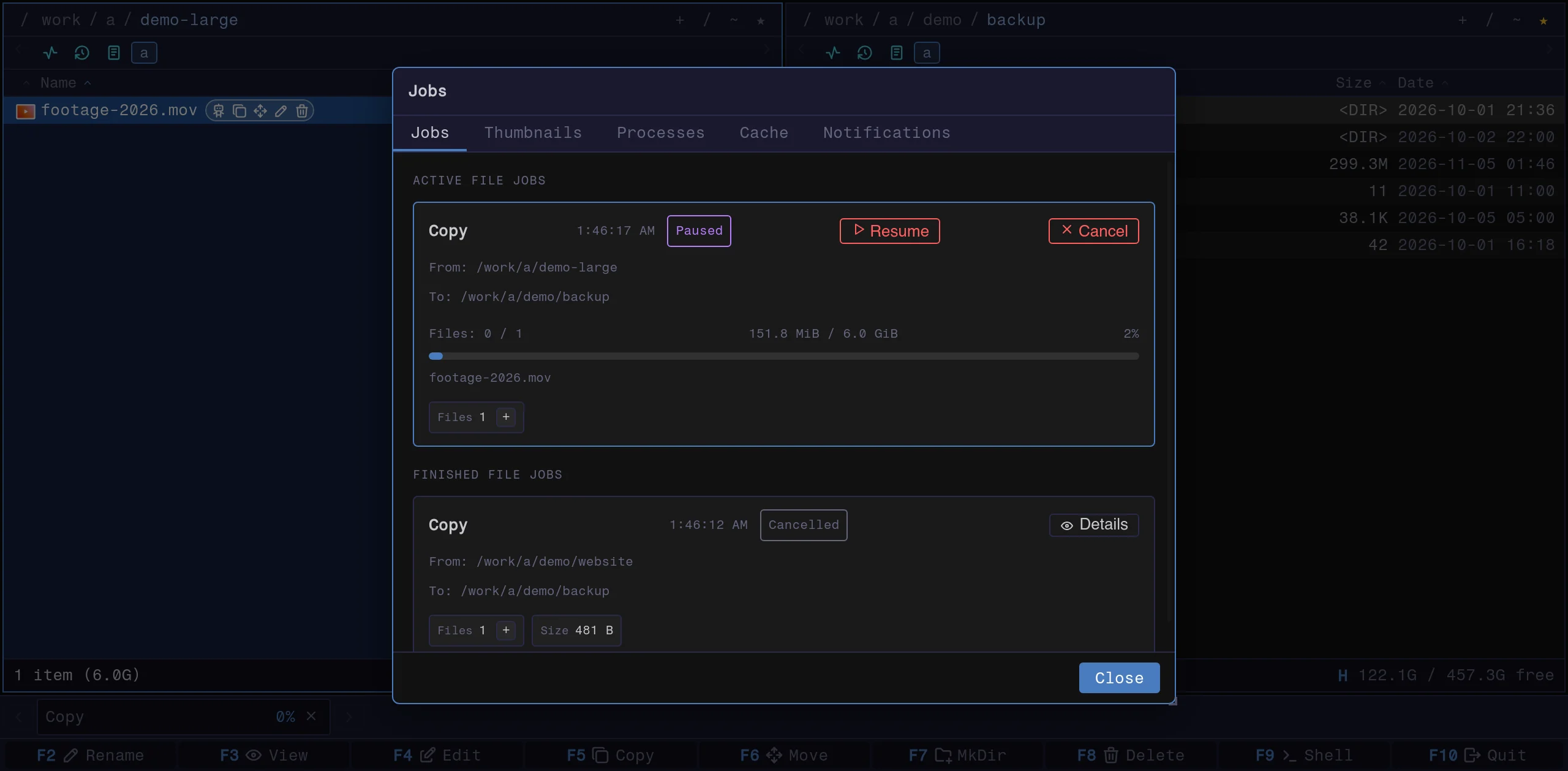
The queue
Section titled “The queue”Copies between local folders can wait in a queue instead of all running at once. Choose Queue in the Copy dialog to add a copy to the end. The jobs bar then shows the running copy and how many are Queued:
- Manage queue lists the waiting jobs. Reorder them with Move up, Move down and Move to last in line, or remove one with Delete queued job.
- Abort current queued job stops the running copy; the next one starts.
When a job finishes
Section titled “When a job finishes”fbro shows a short notification when a job completes or fails. To also get a system notification while fbro is in the background, turn on Show background OS notifications in Settings → General (Ctrl+, (macOS: Cmd+,)).