
Quick preview
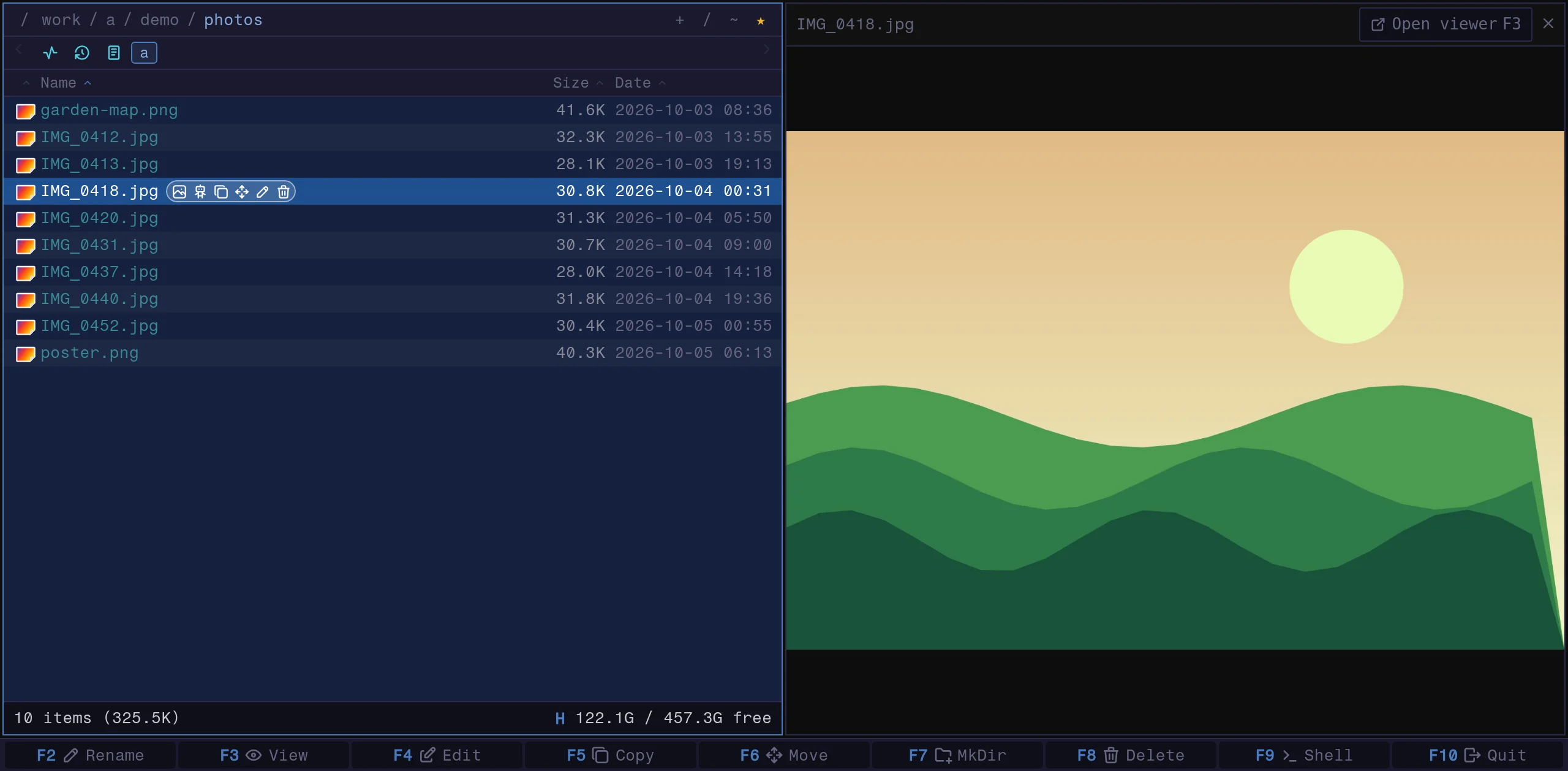
Quick preview turns the other panel into a live preview of the file under your cursor. Press Ctrl+F3 (macOS: Cmd+3) to turn it on, and again to turn it off.
How it works
Section titled “How it works”- Focus stays in your listing. Move the cursor and the preview follows it.
- It uses the same renderers as the viewer but picks one automatically. Markdown shows as a rendered document.
- In a video, Space in the listing plays and pauses it without leaving the listing.
- Press Tab to move into the preview, for example to scroll or zoom an image. Tab and Shift+Tab move through its controls and back to the listing.
- In video and audio, Space plays and pauses, and Left / Right seek five seconds.
- Escape in the preview closes an expanded diagram first, then the preview.
Quick preview has no renderer buttons, find, word wrap or file navigation keys. For those, choose Open viewer in the preview’s header or press F3 (macOS: 3). The preview stays open alongside the viewer window.
Preview what you’re editing
Section titled “Preview what you’re editing”When the active tab is an editor tab, quick preview shows the file you’re editing and refreshes every time it saves. For Markdown it scrolls to keep the line you’re on in view, so you can write and watch the rendered result side by side. Focus stays in the editor.