
Copy, move, delete and more
File operations act on the selection in the active panel, or on the cursor item when nothing is selected. Copy and move send items to the folder shown in the other panel.
| Operation | Keys |
|---|---|
| Copy | F5 (macOS: 5) |
| Move | F6 (macOS: 6) |
| Rename | F2 (macOS: 2) |
| Delete | F8 (macOS: 8) |
| Create folder | F7 (macOS: 7) |
| New file | Shift+F4 (macOS: Shift+4) |
| Inspect item | I |
Copy and move
Section titled “Copy and move”- In one panel, open the destination folder.
- Press Tab and select what to copy or move in the other panel.
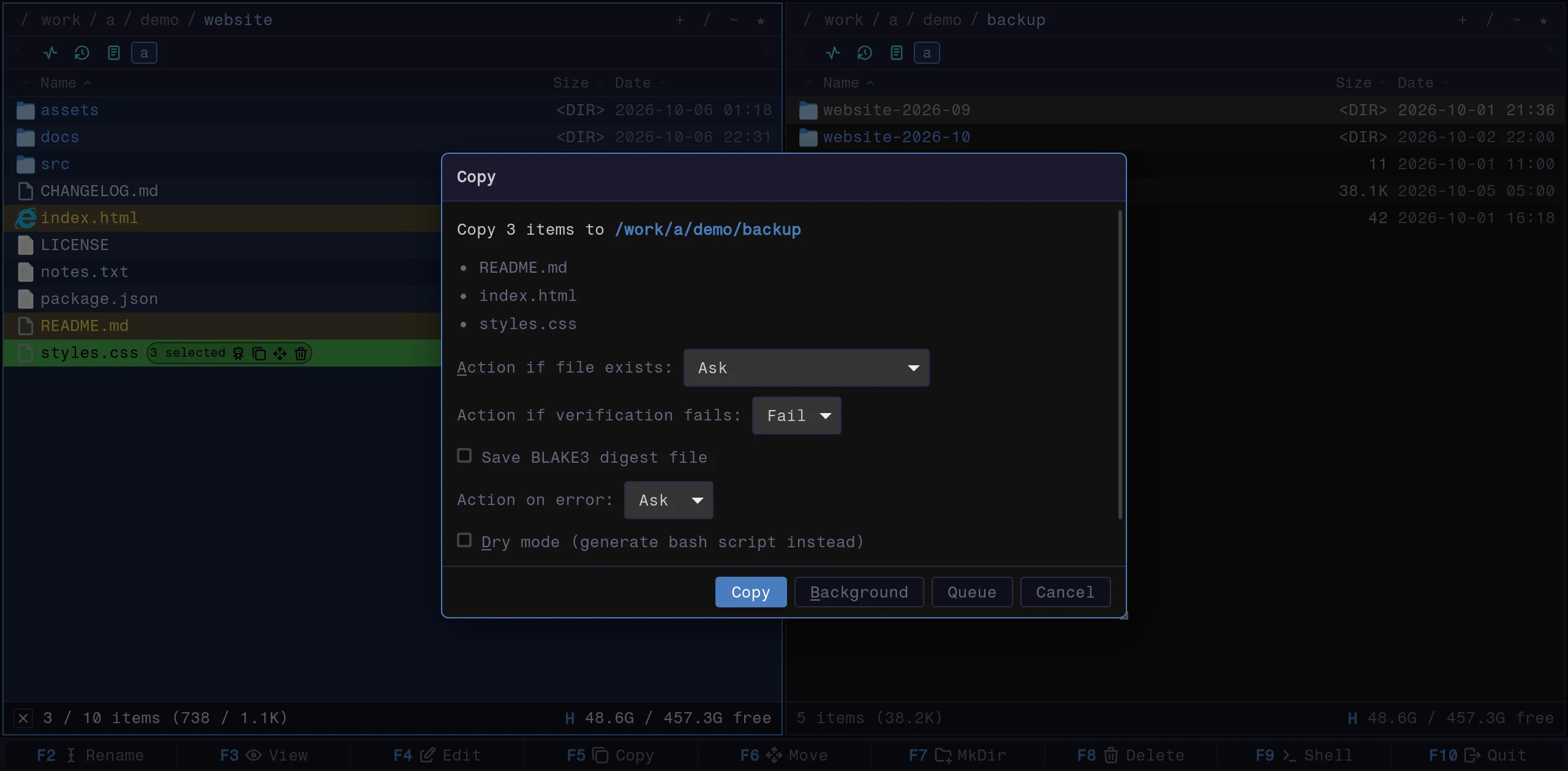
- Press F5 (macOS: 5) or F6 (macOS: 6). The dialog lists the items and the destination.
- Adjust the options if you need to, then press Enter.
The operation runs as a job, so you can keep working while it runs.
Dialog options
Section titled “Dialog options”- Action if file exists decides what happens when a file with the same name is already at the destination: Ask (the default), Overwrite or Skip. When fbro sees partly copied files from an earlier attempt, it also offers Resume partial files.
- Action on error decides what happens when fbro can’t read, write or delete an item: Ask (the default) shows a prompt, while Skip silently skips each failed item and carries on. This option appears for copy, move and delete. A failed transfer check still follows Action if verification fails.
- Destination name appears when you copy a single file or folder. Change it to copy under a different name.
- Repeated filenames appears when you copy several files out of search
results that share a name. Exclude duplicates copies only the first file
with each name; Add random suffix gives the later ones a suffix, such as
README-049f.md. - Action if verification fails and Save BLAKE3 digest file control the integrity check fbro runs on remote fbro transfers.
- Dry mode (generate bash script instead) doesn’t copy anything. It writes a shell script with the commands the operation would run, so you can check or run it yourself.
- Start paused when sent to background queues the job without starting it.
The buttons at the bottom:
- The primary button (Copy or Move) starts the job and shows its progress.
- Background starts it and closes the dialog straight away.
- Queue, for copies between local folders, adds the job to the queue so it runs after the copies already waiting. See Jobs.
Letters underlined in the dialog are shortcuts for those options, for example A for Action if file exists.
Conflicts during a job
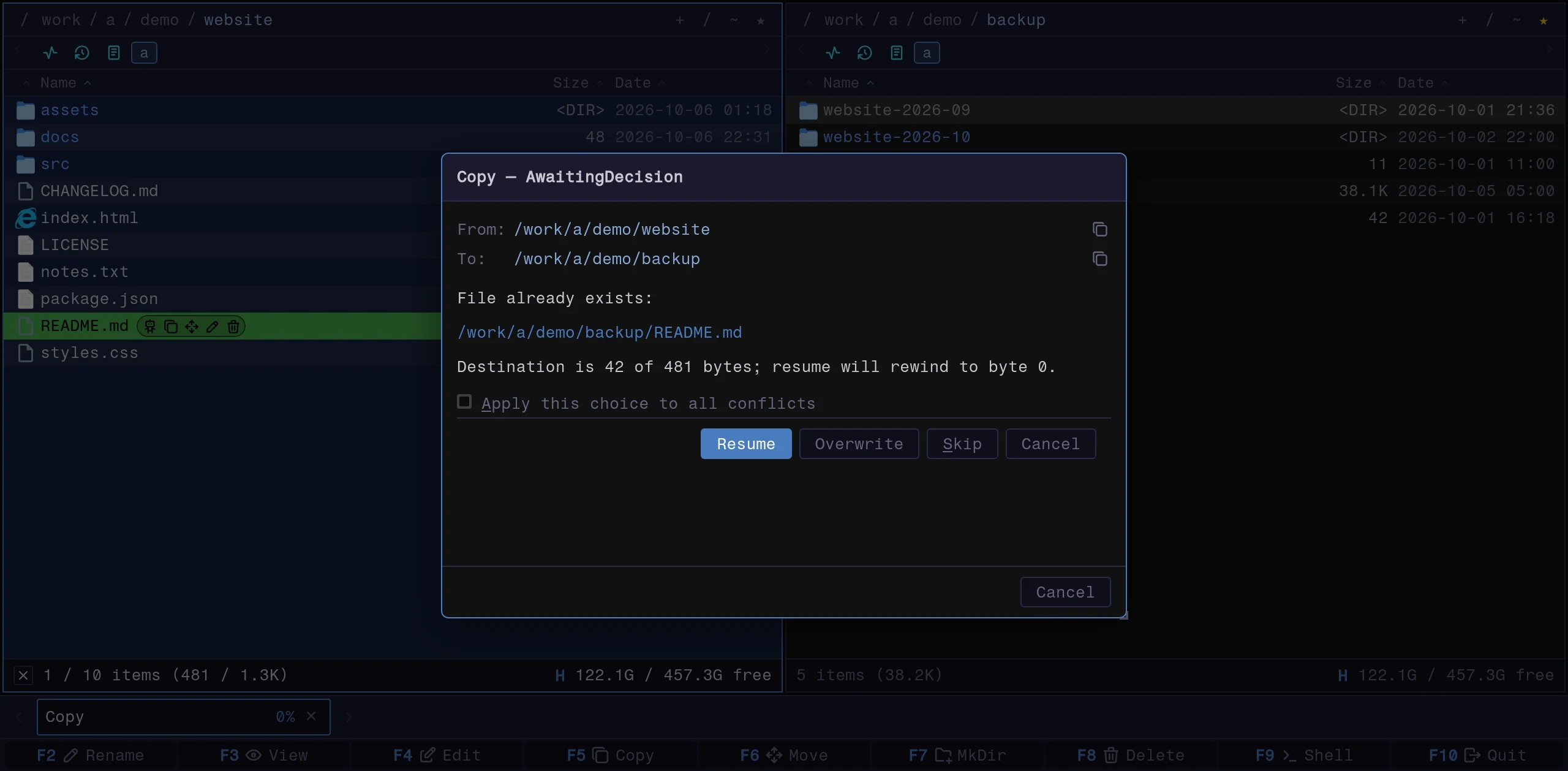
Section titled “Conflicts during a job”With Ask, a job stops when it meets a file that already exists and shows File already exists: with the path. Choose what to do with that file. Turn on Apply this choice to all conflicts (A) to use the same answer for the rest of the job. Enter takes the highlighted choice and S skips the file.
Errors during a job
Section titled “Errors during a job”With Action on error: Ask, a job that can’t read, write or delete an item shows Cannot copy item:, Cannot move item: or Cannot delete item:, followed by the path and the error. Choose Retry to try that item again, Skip (S) to record it and continue, Skip all (L) to skip later failures without asking again, or Cancel to stop the job. Retry is focused first. Validation errors, such as copying an item onto itself, stop the job without a prompt.
While a copy or move is running, Skip (S) skips the current file. A moved item is never removed from its source unless it was transferred in full; if one child of a folder is skipped, the whole source folder stays where it is.
When the job finishes, the terminal shows how many items were skipped with a scrollable list of paths and reasons. You can copy all skipped paths from there.
Copying out of archives and other sources
Section titled “Copying out of archives and other sources”Copy works from any source that can be read: archives, search results, a paired remote fbro. Inside an archive, the context menu calls it Extract.
Rename
Section titled “Rename”F2 (macOS: 2) renames the cursor item in place. Type the new name in To: and press Enter. A rename can’t move the item to another folder; use Move for that.
Delete
Section titled “Delete”F8 (macOS: 8) asks for confirmation, then deletes the selected items.
Deleting in Global Selections only removes the items from the selection; the files themselves stay where they are.
Create a folder or file
Section titled “Create a folder or file”- F7 (macOS: 7) opens Create Directory. You can type a nested
path such as
photos/2026/juneto create several levels at once. fbro refuses a name that already exists. - Shift+F4 (macOS: Shift+4) opens New File and creates an empty file in the current folder. Like Create Directory, it refuses a name that already exists, so an existing file or folder is never overwritten.
Both remember names you entered before; press Alt+Down (macOS: Option+Down) in the field to pick one.
Set permissions
Section titled “Set permissions”On Linux and macOS, open the context menu (C) and choose Set Permissions…. Tick Read, Write and Execute for the owner, group and others, or type the mode in Octal:. With several items selected, the change applies to all of them. Windows has no equivalent here.
Inspect an item
Section titled “Inspect an item”I shows the item’s name, type, size, full path, created and modified dates, permissions and, for a link, its Target.