
Selection
Most operations act on the selection: the set of marked items in the active panel. When nothing is selected, they act on the item under the cursor. The panel footer shows how many items are selected and their total size.
Mark items one by one
Section titled “Mark items one by one”- Space marks or unmarks the cursor item without moving the cursor.
- Shift+Up and Shift+Down select while you move. Shift+Home and Shift+End extend the selection to the ends of the list.
- With the mouse, click moves the cursor and Shift-click selects everything from the cursor to the clicked item. Dragging with the right button over rows selects them, or deselects them if you start on a selected row. A right click without dragging opens the context menu.
Select all, none, or the opposite
Section titled “Select all, none, or the opposite”| Action | Keys |
|---|---|
| Select all | Ctrl+A (macOS: Cmd+A) |
| Clear the selection | Ctrl+Shift+A (macOS: Cmd+Shift+A) |
| Invert the selection | Ctrl+I (macOS: Cmd+I) |
Select files by pattern
Section titled “Select files by pattern”Press + to open Select Files,
or - to open Deselect Files.
The field starts with the cursor file’s extension, such as *.txt.
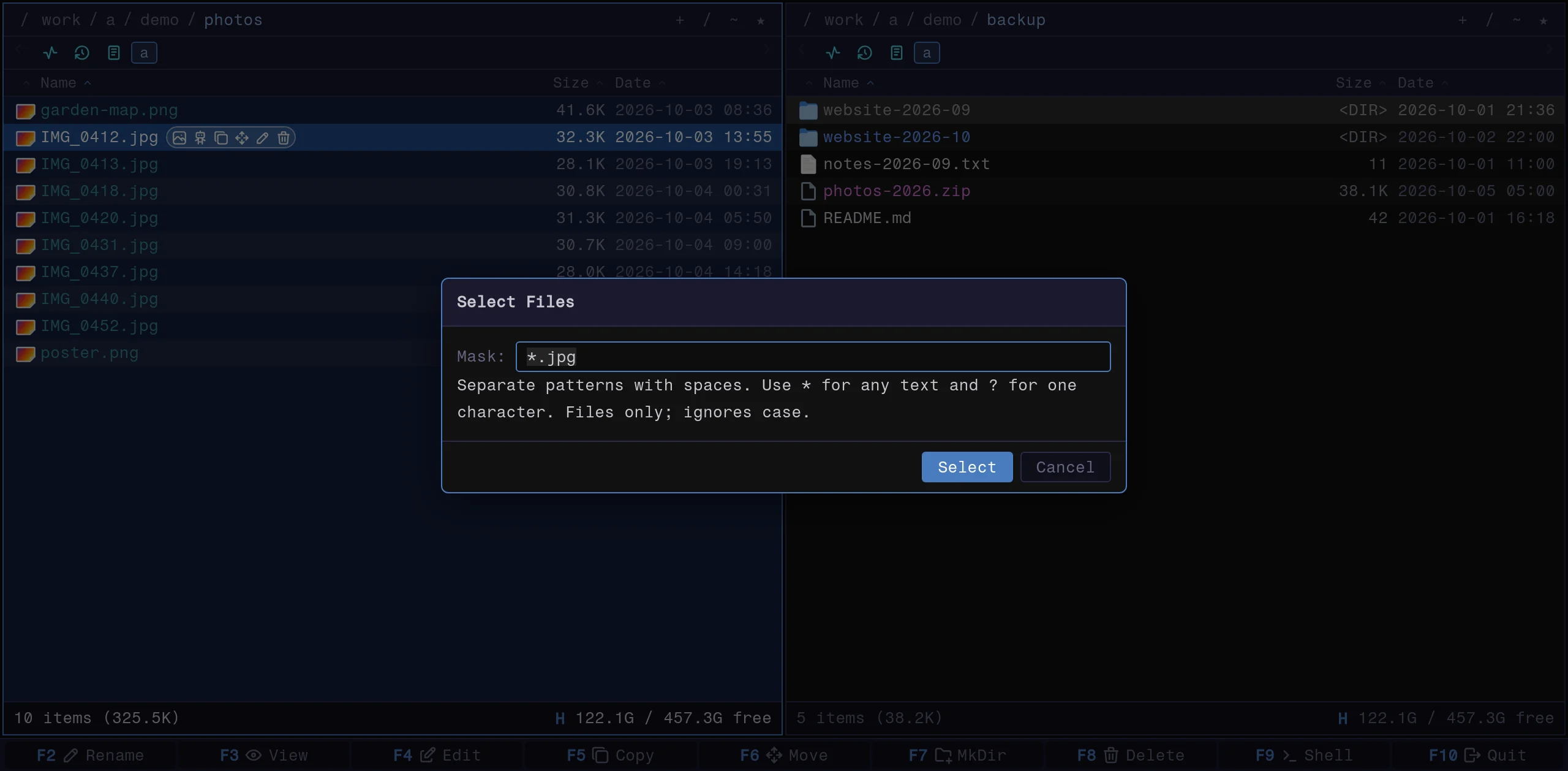
*matches any text and?matches one character. Matching is case-insensitive and covers the whole file name.- Separate several patterns with spaces:
*.jpg *.png. *.*matches every file, including files without an extension.- Patterns match files only, never folders. Hidden files and files outside the current filter are left alone.
Selecting adds to the existing selection and deselecting removes from it, so you can combine several patterns.
Folder sizes
Section titled “Folder sizes”Folders don’t show a size until it’s calculated:
- Marking a folder with Space also starts calculating its size.
- Shift+Space calculates the size of every selected folder, or every folder in the listing when nothing is selected. Press it again to stop calculations that are still running.
Calculations run in the background and show up in Jobs. They work on local folders and inside zip and 7z archives.
Global selections
Section titled “Global selections”A global selection is a named list of files and folders that you collect from anywhere, across folders and panels. It’s useful for gathering scattered files before you copy them, pass them to a bro, or look for duplicates in them.
To add items:
- Select the files or folders, or put the cursor on one.
- Open the context menu (C) and choose To global selection.
- Pick an existing selection, or choose Create new selection and give it a name.
Your global selections appear as the Global Selections source in the source bar. Inside, each selection is a folder listing the items it refers to. Deleting there only removes the reference from the selection, never the actual file.