
Editing & notes
fbro gives you three ways to edit a file:
| Keys | Opens | |
|---|---|---|
| Edit | F4 (macOS: 4) | Your text editor app |
| Quick Edit | Ctrl+F4 (macOS: Cmd+4) | Nano or Vim in a terminal inside the panel |
| Edit in Editor Tab | inline Edit, the context menu, or the command palette | fbro’s own editor, in a tab |
Edit in your editor
Section titled “Edit in your editor”F4 (macOS: 4) opens the cursor file in the first editor fbro finds, in this order: Visual Studio Code, VSCodium, Cursor, Zed, Sublime Text. If none is installed, fbro opens the file with your system’s default app for that type.
If that fails too, fbro shows No editor available with the file’s path, so you can copy it and open it yourself.
Files in your notes folder are the exception: Edit opens them in an editor tab.
Quick Edit in a terminal
Section titled “Quick Edit in a terminal”Ctrl+F4 (macOS: Cmd+4) opens the file in a terminal editor inside the panel, so you never leave fbro. Choose Nano or Vim under Quick terminal editor in Settings → General (Ctrl+, (macOS: Cmd+,)). If your choice isn’t installed, fbro tries the other one.
Editor tabs
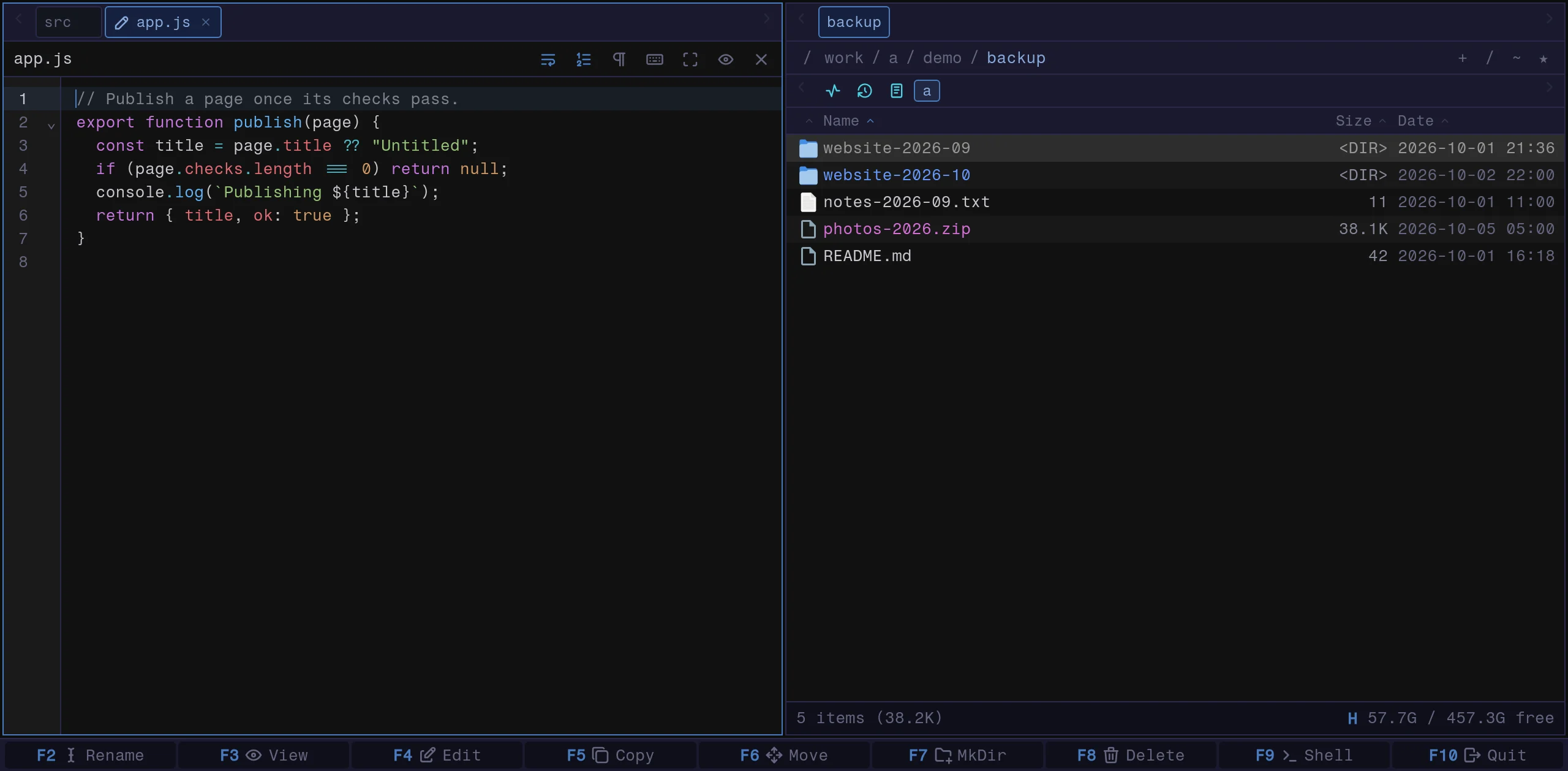
Section titled “Editor tabs”fbro has a built-in editor for small text files. On a text file the first inline choice is Edit, and it opens an editor tab. The context menu (C) calls the same action Edit in Editor Tab, and so does the command palette. The file opens in a new tab next to the current one.
It works for UTF-8 text files of up to 2 MiB on a local disk, including source
and config files, checksum files, SSH keys and dotfiles such as .gitignore.
Opening a file that already has an editor tab switches to that tab.
Code is highlighted for common languages, among them Rust, Python, JavaScript
and TypeScript, Go, C and C++, Java, shell scripts, JSON, YAML, TOML, HTML, CSS
and SQL. The file name decides the language; a file without an extension, such
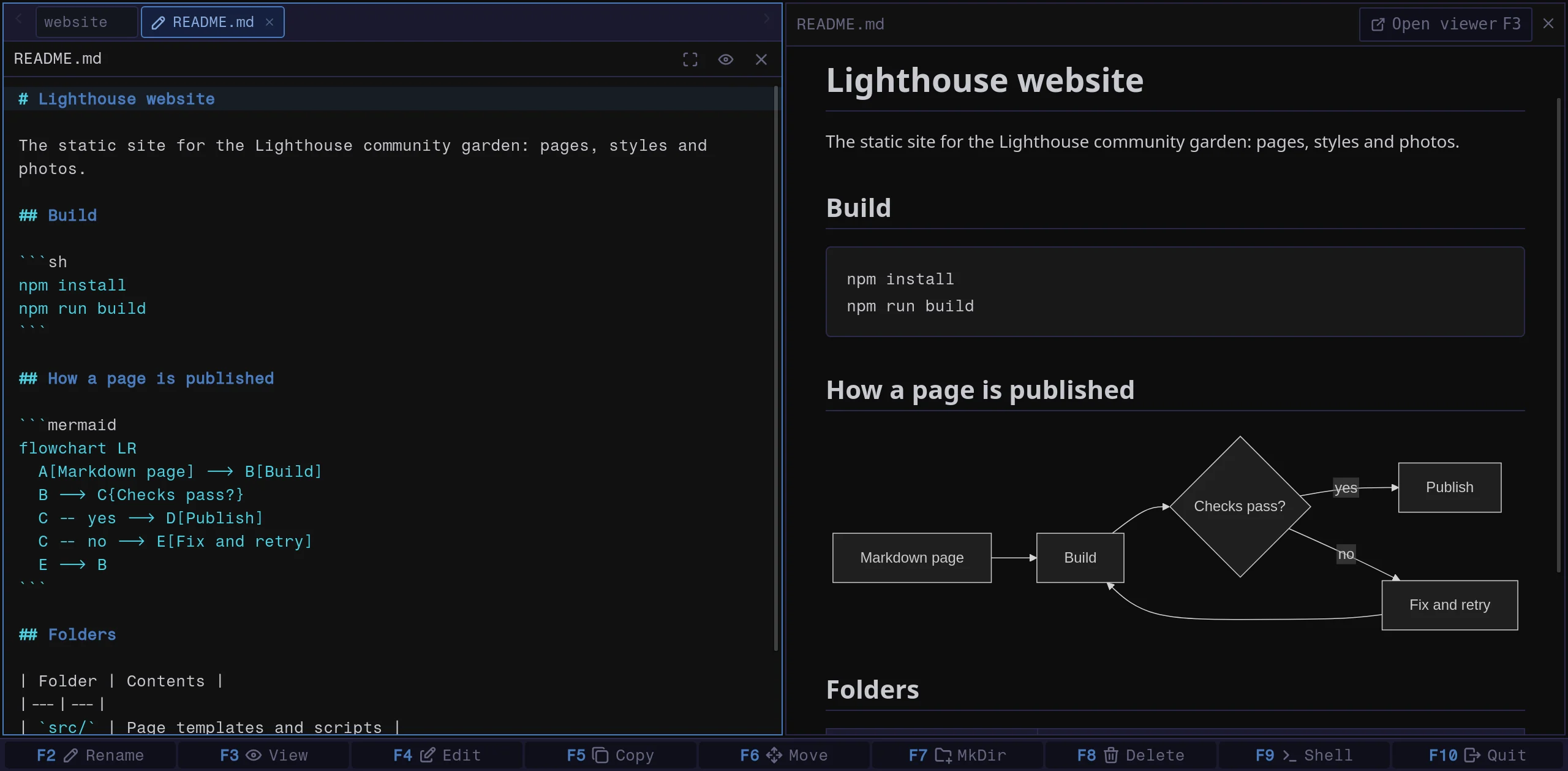
as a script, is recognized by its #! line. Markdown notes highlight their
fenced code blocks. Brackets and quotes close as you type, and the arrows in the
left margin fold a block. The colors come from the
color scheme.
Keys in an editor tab
Section titled “Keys in an editor tab”While the editor has focus, it gets every key, so letters and fbro’s single-key shortcuts simply type text. Only these do something else:
| Key | Action |
|---|---|
| Escape | Save and go back to the listing tab you came from. The editor tab stays open. |
| Ctrl/Cmd+S | Save now |
| Ctrl/Cmd+W | Save and close the tab |
| Ctrl/Cmd+Shift+M | Full screen on or off |
| Alt+Z (macOS Option+Z) | Wrap long lines on or off |
| Alt+N (macOS Option+N) | Line numbers on or off |
| Alt+W (macOS Option+W) | Show whitespace (spaces, tabs, trailing spaces) on or off |
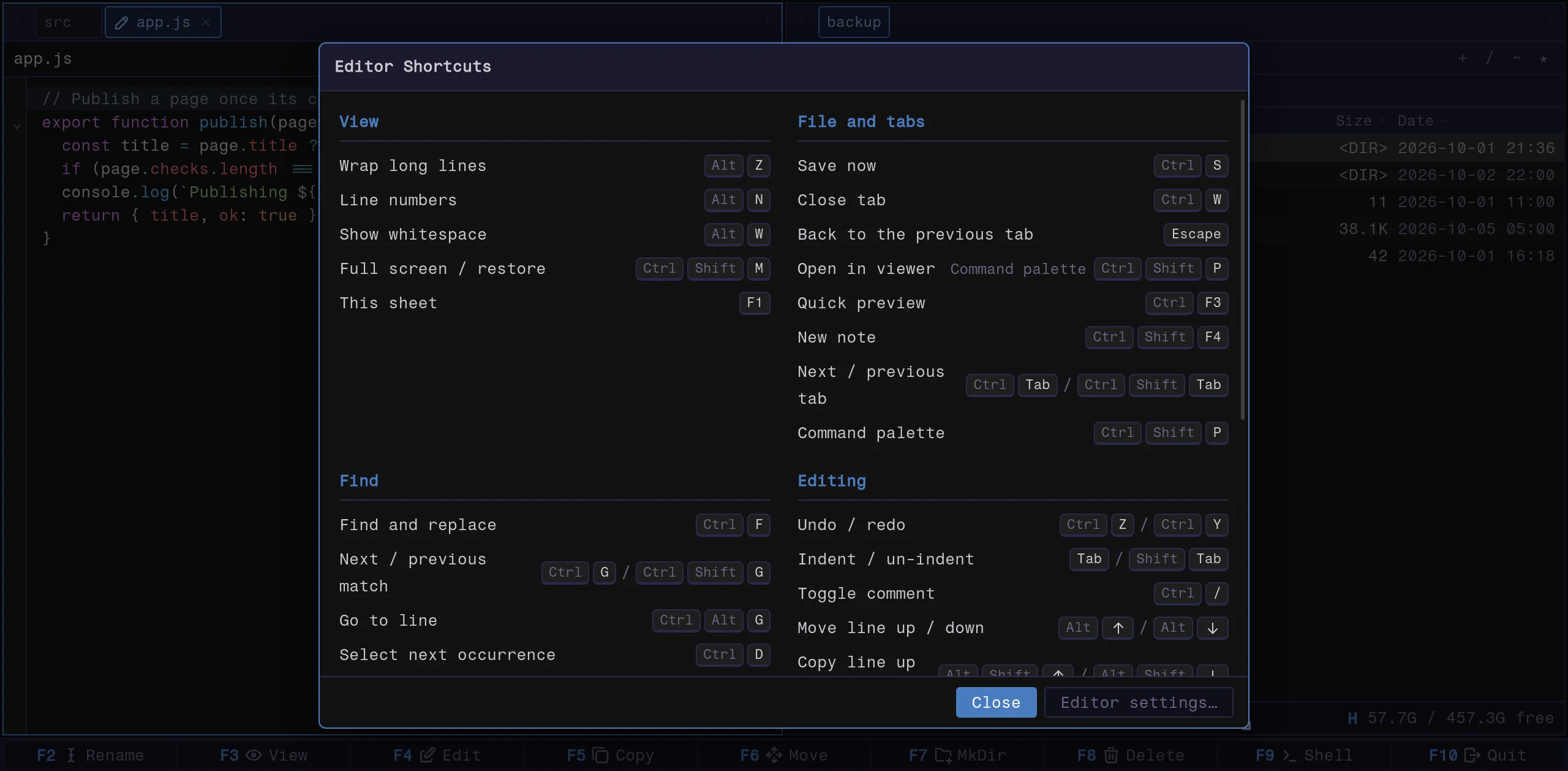
| F1 | Show this tab’s shortcuts |
| Ctrl/Cmd+F | Find |
| Ctrl+F3 (macOS: Cmd+3) | Save and toggle quick preview |
| Ctrl+Shift+F4 (macOS: Cmd+Option+4) | Save and start a new note |
| Ctrl+Tab / Ctrl+Shift+Tab | Save and switch to the next / previous tab |
| Ctrl+Shift+L (macOS: Cmd+Shift+L) | Save and open the tab list |
| Ctrl+Shift+P (macOS: Cmd+Shift+P) | Open the command palette |
| Tab / Shift+Tab | Indent / unindent |
| Ctrl+Shift+[ / ] (macOS Cmd+Option+[ / ]) | Fold / unfold the block at the cursor |
On Linux and Windows, F3 (macOS: 3) also saves and opens the file in the viewer.
The wrap, line number and whitespace options also have buttons in the tab’s header. They are one setting for all editor tabs, also under Editor in Settings → Display (Ctrl+, (macOS: Cmd+,)). F1 opens a sheet of everything the editor understands, including editing keys such as move line, toggle comment and add cursor.
Saving
Section titled “Saving”There’s no need to save by hand: fbro saves about a second after you stop typing, and also when you leave the tab, switch windows or quit. The tab shows a dot while a save is pending and a warning icon if saving is paused or failed.
The file keeps its line endings (LF or CRLF) and encoding mark.
When the file changes elsewhere
Section titled “When the file changes elsewhere”If another program changes the file and you have no unsaved edits, the editor reloads it quietly. If you do have edits, autosave pauses and a bar explains why. Press Ctrl/Cmd+S or the bar’s button to decide:
- Overwrite (O) saves your version over the other one.
- Reload (R) throws away your edits and loads the file.
- Keep both (K) saves your version as a separate
name (conflict <date time>).extfile and loads the other one.
If the file was deleted, Save it again (S) recreates it.
Quitting
Section titled “Quitting”When you quit, fbro saves every editor tab first. If one can’t be saved, it asks whether to close anyway.
Editor tabs are restored the next time fbro starts.
Scratch notes
Section titled “Scratch notes”Notes are quick Markdown files that fbro keeps for you.
- Ctrl+Shift+F4 (macOS: Cmd+Option+4) creates a note named after the current date and time and opens it in an editor tab. It works from inside an editor tab too.
- Scratch in the source bar, or Open Notes in the command palette, opens the notes folder.
A new note you close without typing anything is removed again.
Notes live in the scratch folder of fbro’s
data folder. To keep
them somewhere else, for example in a synced folder, set Notes folder in
Settings → General.