
Browse & copy
Once you’ve paired and connected, each folder the other machine shares appears in your source bar. Open it in a panel like any other source.
Browse and view
Section titled “Browse and view”- Navigation, sorting, filtering and selection work as usual.
- F3 (macOS: 3), and Enter on a file, open it in fbro’s viewer.
- Grid view shows real thumbnails. The other machine makes them and sends only the small images, never the whole files. It can turn this off with Stream thumbnails to paired fbro clients in Settings → Display.
Remote sources are read-only: you can’t delete, rename or create anything on the other machine.
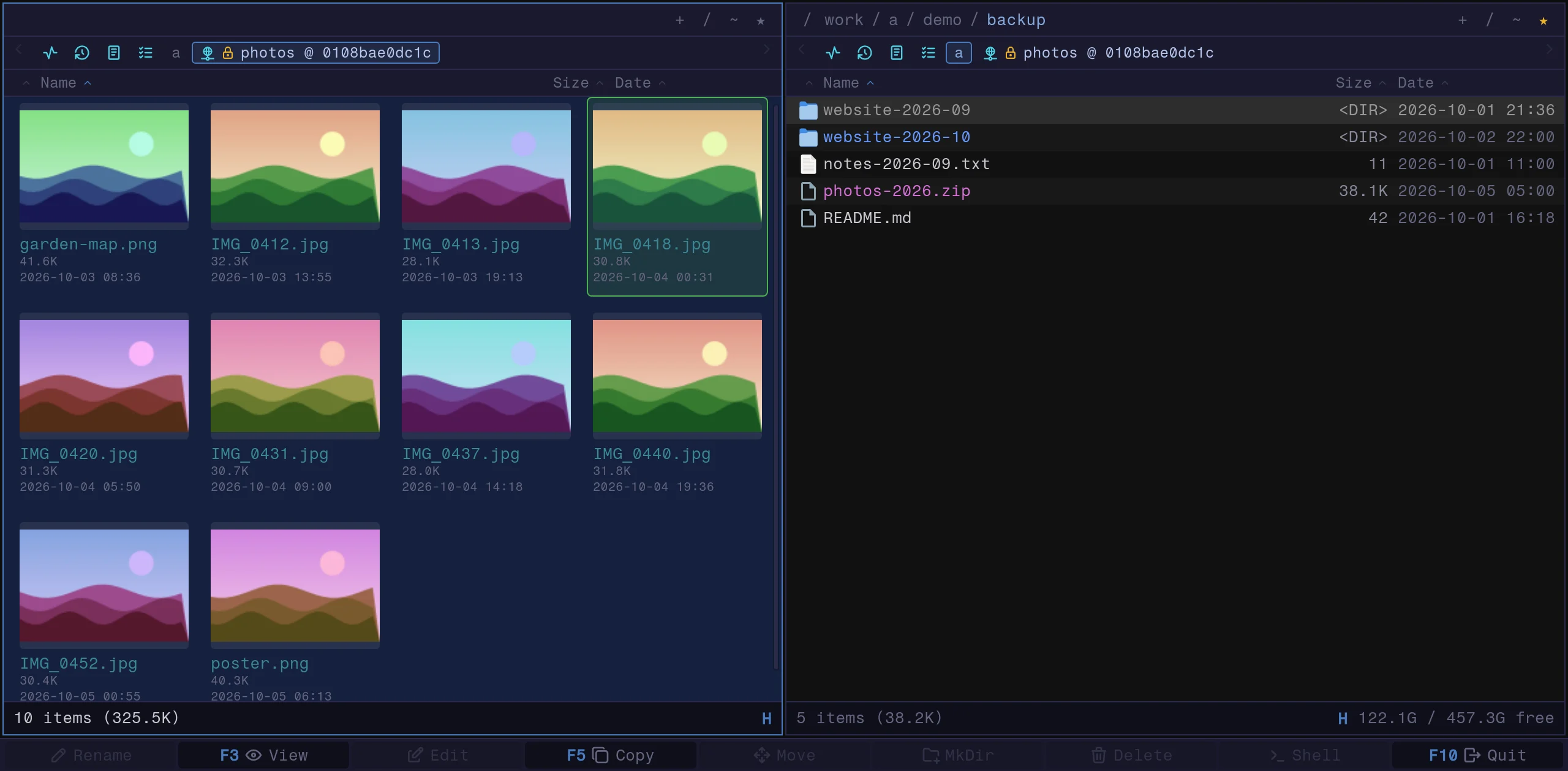
Copy files to this machine
Section titled “Copy files to this machine”Open a local folder in the other panel and use Copy (F5 (macOS: 5)) as usual. Remote copies add two safeguards.
Resume
Section titled “Resume”If a copy is interrupted (the network drops, or you cancel and keep the partial files), copy again to the same place. fbro offers Resume partial files in the Copy dialog, or Resume when it meets each partial file, and continues from where it stopped instead of starting over.
When you cancel a remote copy, fbro asks whether to keep or delete the partly copied files. A copy that was already resumed always keeps them, so it can be resumed again.
To have fbro retry interrupted copies by itself, turn on Auto-retry interrupted copies in Settings → General.
Verification
Section titled “Verification”Every remote copy is verified. fbro compares three BLAKE3 checksums of each file: one the other machine computes from the file on disk, one it computes while sending it, and one of the file written here. All three must match.
If they don’t, Action if verification fails in the Copy dialog decides what
happens: Fail the job, or Ask you whether to retry, skip or abort. Tick
Save BLAKE3 digest file to keep the checksum next to each copied file as a
.b3 file.
See who is copying from you
Section titled “See who is copying from you”In Jobs (J), Outgoing Transfers lists the files a paired machine is copying from you, with their progress. The Journal keeps a permanent record of transfers, connections and pairings.